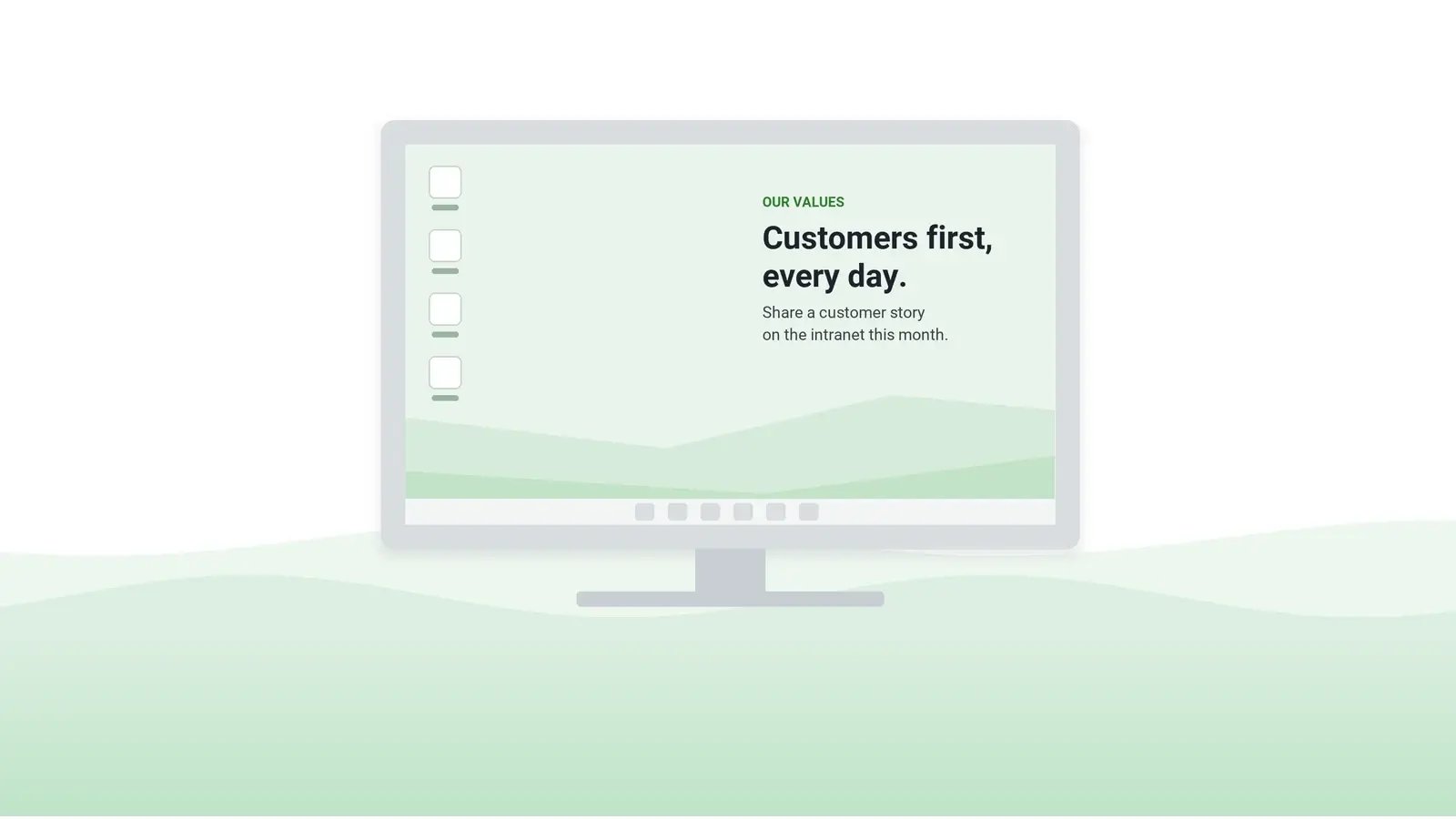
A custom desktop wallpaper for a managed fleet is less a design job than a delivery job. The image still has to hold up on every screen shape in use and stay clear of the desktop icons on both Windows and macOS. Whichever route delivers it – Group Policy, an MDM profile or corporate desktop wallpaper software – most of the work is deciding who may change it, how a new image reaches laptops that are off the network, and how an old one comes down.
The last two arrive first as service desk tickets. A laptop that signs in before it can reach the file share shows a plain background, while the office PCs around it look fine. The other familiar ticket comes months later: the summer-hours image is still showing on part of the fleet in November.
Table of Contents
1. Decide who owns the wallpaper before anyone designs it
2. Aspect ratio, not pixel size, decides what each screen shows
3. Screen readers skip wallpaper text, so anything to act on needs a second channel
4. Show only what stays true for weeks and is safe on a screen share
5. Count a wallpaper as reach, not as evidence
6. Set the end date when the image is published
7. Group Policy, Intune and a Mac profile each break in a different place
8. Wallpaper software pays off once campaigns change monthly
9. Frequently asked questions
Decide who owns the wallpaper before anyone designs it
Internal communications and the endpoint team both have a claim. Communications wants a new image for each campaign; the endpoint team wants a setting that rarely changes and never breaks a build. When delivery runs through Group Policy or an MDM profile, every new image becomes a change request, and communications soon stops asking. Even when communications gets a tool of its own, IT still answers for what appears on a trading floor, a reception PC or a shared clinical workstation.
The split that holds up best gives IT the delivery, the device groups, the exceptions and the pilot ring, and gives communications the content and the calendar. One named approver signs off on anything company-wide – the same person, or the same process, that approves an all-staff email. Reception, branch and clinical PCs add a second approver: whoever signs off on customer-facing content. A company desktop background merits that much review because it stays in front of every employee for weeks, and so does any typo or outdated phone number on it.
On Group Policy or MDM, the year-end change freeze also freezes the takedown of any image that expires during it. Settle which route carries the year-end campaigns while change requests are still being approved.
Aspect ratio, not pixel size, decides what each screen shows
The right desktop wallpaper size for a managed fleet is a 3840 × 2160 master (4K, 16:9), which matches 4K office monitors and scales down cleanly to smaller screens. Add a 5120 × 2880 export if the fleet includes 5K Mac displays. On 16:10, 3:2 and 21:9 screens, Fill crops a 16:9 image at the edges; the table shows how much.
| Screen in the fleet | Typical native resolution | What happens to a 16:9 design (Fill unless noted) |
|---|
| 16:9 office monitor | 1920 × 1080, 2560 × 1440, 3840 × 2160 | The whole image shows |
| 16:10 laptop or monitor – many business laptops; recent MacBooks fall between this row and the next | 1920 × 1200, 2560 × 1600 | About 5% is cut from each side |
| 3:2 laptop or tablet, such as a Surface | 2256 × 1504, 2880 × 1920 | About 8% is cut from each side |
| 21:9 ultrawide | 3440 × 1440 | About 13% is cut from the top and from the bottom |
| Two 16:9 monitors with the Span setting | 3840 × 1080 across both | One image spreads over both screens, so it needs its own 32:9 version – and its center lands on the bezel |
For a mixed fleet, keep the message inside a center safe zone and leave only color and texture near the edges. A zone of roughly the middle 84% of the width and 74% of the height stays visible on every screen in the table except Span. Fill with a safe zone is the better default, because Stretch distorts the image on every screen that is not 16:9 and Fit leaves bars in whatever background color the device happens to be set to. On Windows multi-monitor desks, Fill repeats the image on each screen, and that is the behavior you want. If one model dominates a team, such as Surfaces in sales or ultrawides in engineering or analytics, a second export sent only to that team costs less than a compromise for everyone.
Windows and macOS leave only the center band clear
By default, Windows arranges desktop icons in columns from the top left, above a taskbar along the bottom; macOS places desktop items from the top right, under the menu bar, with the Dock along the bottom. The familiar layout – icons on the left, message on the right third – therefore works only for a Windows-only fleet.
Display scaling moves the edge of that clear band. Icons and their labels grow with the scaling setting and the wallpaper does not, so at 150% a full column of icons covers noticeably more of the image. Test on the smallest screen in the fleet, at its native resolution and usual scaling, with a realistic desktop rather than an empty one.
Screen readers skip wallpaper text, so anything to act on needs a second channel
A screen reader does not announce text in a wallpaper, a magnifier shows one fragment at a time, and the words cannot be resized, reflowed or translated the way live text can. That sets a firm limit on what the wallpaper can carry alone: anything an employee must act on also needs a channel that carries text.
WCAG 2.2 (W3C, 2024) sets a contrast minimum of 4.5:1 for normal text and 3:1 for large text. It is a sensible bar for the words that do go into the image, even though a wallpaper is not web content.
Busy, saturated photographs make icon labels hard to read, and they reach further than the desktop. On Windows 11, the Mica material (Microsoft Learn, 2026) draws on the desktop wallpaper to color the background of Settings and other apps that use Mica. A loud image therefore tints the user's windows as well.
Show only what stays true for weeks and is safe on a screen share
Employees see the company wallpaper in the gaps – between windows and right after sign-in – and so does everyone on a call when someone shares their whole screen. Design reviews rarely check that case. The table tests each item for how long it stays true and for who else sees it on a screen share.
| Content | On the wallpaper? | Reason, or where it goes instead |
|---|
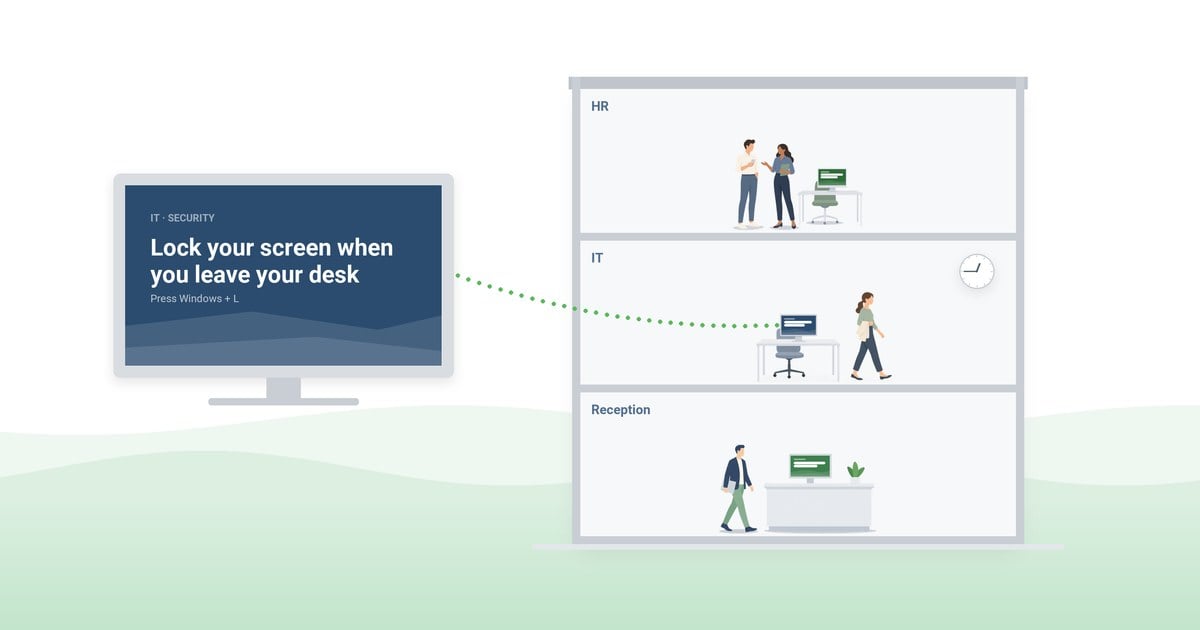
| Service desk number and self-service portal address | Yes | Changes rarely, and people need both when an app fails but the PC still works. |
| Phishing awareness basics: how to report a suspicious email, the button's name and where to find it | Yes | Makes the button's name familiar before the moment of doubt, and stays accurate for months. |
| Site safety basics: assembly point, security desk, first-aid contacts | Yes, one version per site | Targeted by site. The evacuation order itself needs a full-screen alert. |
| A campaign with a deadline, such as an engagement survey or a mandatory training window | Yes, with an end date | Comes down the day the window closes. Reminders that need a response go out as an alert or a survey. |
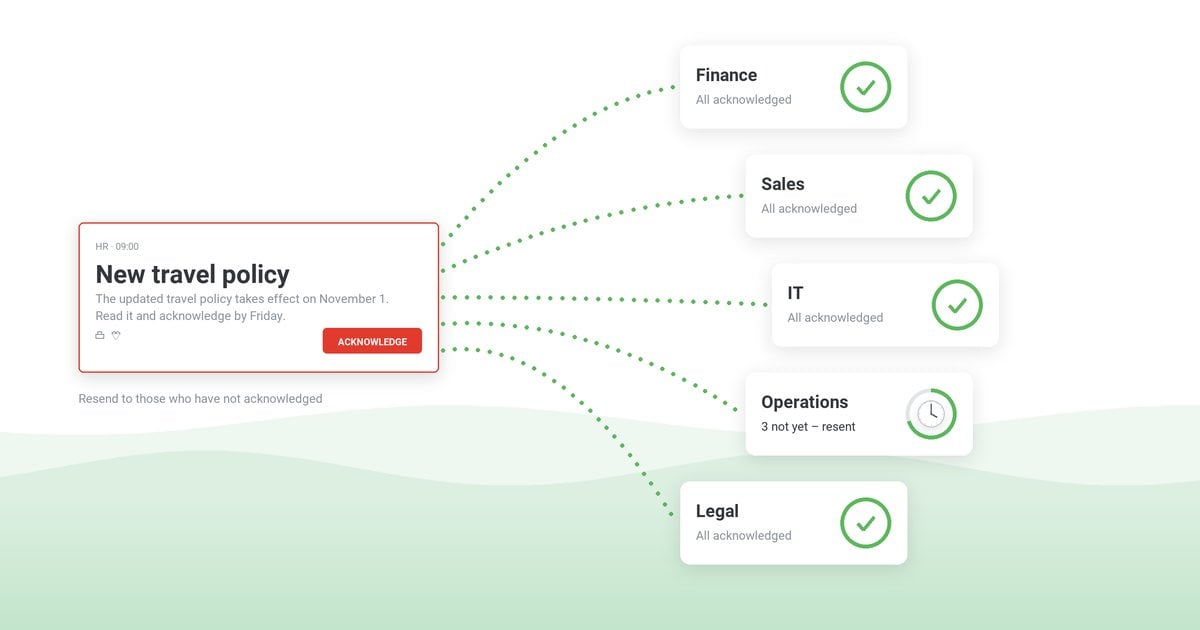
| A policy change | Only as a pointer | The attestation record comes from a desktop alert that requires acknowledgment. |
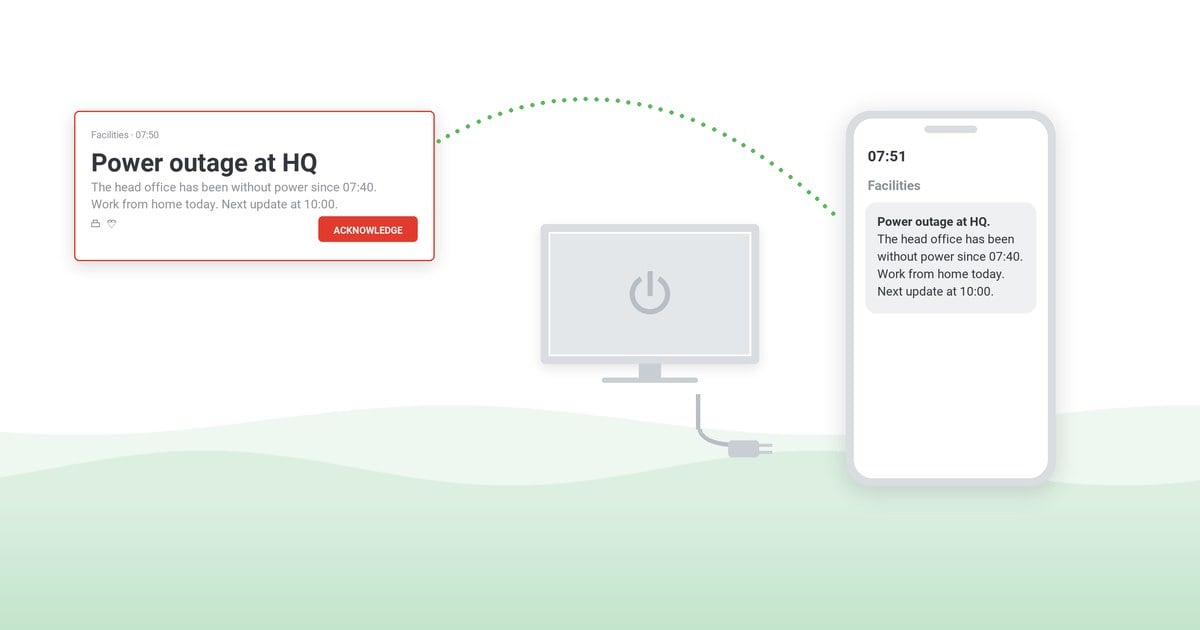
| A Microsoft 365 outage and its workaround | No | Covered by open windows at the moment people hit the failure, and wrong within hours. Send it as an alert or a scrolling ticker. |
| Team KPIs, revenue targets, unreleased product names | No | Can appear on any full-screen share, to visitors, and in screenshots. |
The last row retires a popular idea, a wallpaper for each team showing its own targets; the team already has a dashboard for them.
Count a wallpaper as reach, not as evidence
The problem shows at audit: the plan counted the wallpaper as reach for a mandatory policy, but the evidence file holds only an email send log. A wallpaper produces no click, no open and no read record.
You can still find out whether it works. Put a short address from your own intranet domain on the image – one used nowhere else, typed rather than scanned, and opening a page that asks for no sign-in – and count the visits. Two weeks into a campaign, ask a small sample of employees, without showing them the image, what the current wallpaper says. Watch whether service desk calls on the topic change. None of these shows that a given person saw the image, and none needs to – that is the acknowledged alert's job.
Set the end date when the image is published
Run one base image with no end date, carrying the brand, the year's priorities and the service desk details, and give every campaign image its end date at the moment it is published. Decide what a desk shows while both are live: end the base image when the campaign starts, and schedule it again from the campaign's end date. Before the first campaign reaches the whole fleet, use the pilot ring to check what a PC shows during the campaign and on the morning after it ends.
A new image every week or two is a workable pace; set that pace with each image's start and end dates rather than with rotation. Keep rotation for a small set of images that belong together, and avoid fast intervals: an image that changes every minute behind a spreadsheet draws the eye for the wrong reason. Once a quarter, have the owner and the approver review everything still scheduled; that review catches the images whose end date was never set.
Group Policy, Intune and a Mac profile each break in a different place
Whatever delivers the image has five jobs:
- Hold each image until a named approver signs off.
- Send a separate version to a site, a language or a device group.
- Take the image down on the end date fixed when it was published.
- Cover Windows and Mac where the fleet has both, without overriding the machines that keep a locked background.
- Work alongside a channel that records who confirmed anything mandatory.
The routes below differ in how many of these jobs they do without a change request for each new image.
| Route | Where it works well | Where it gets hard |
|---|
| Group Policy – the Desktop Wallpaper setting | No extra cost on domain-joined PCs. Locks the image and its position, so users cannot change either. Works on Windows Pro, Enterprise and Education. | Per user, so by default it follows people to the domain PCs they sign in to. If the file is unreachable at sign-in, no wallpaper is shown (Microsoft Learn, 2025). The usual fix, a Group Policy Preferences item that copies the file to a local path, keeps a picture on screen. A laptop off the network, though, shows the old image until it reconnects and refreshes policy. |
| Intune – the Personalization settings | Takes an image URL or a local file and locks it. Suits cloud-managed PCs that never see a domain controller. | Set per device, so a shared workstation shows the same image whoever signs in. Needs the Enterprise or Education edition of Windows; on Pro it works only in shared-PC setups (Microsoft Learn, 2025). On Pro, MDM can deliver the Group Policy setting instead, with the same file-path limits – and with no file share in reach, the image has to be pushed to each PC first. |
| macOS – an MDM profile with Apple's Desktop payload | Sets the desktop picture and locks it. | The profile holds only the path to the picture (Apple developer documentation, checked October 2026), so the image has to reach every Mac first, by a separate package or script. |
| Wallpaper software | Communications publishes, schedules and targets each image without a policy edit, from one console. | Needs an agent on every computer and adds publisher accounts to govern. |
Against the five jobs, the three native routes cover approval through the change process, and a site version through the groups each policy targets. The other three jobs need separate work. A Group Policy setting or an Intune profile has no end date of its own, so the removal is usually a second change scheduled for the campaign's end, or a script built for the purpose.
Remote and virtual desktops need their own check. Microsoft's policy reference (2025) notes that remote desktop server sessions ignore the Group Policy wallpaper setting. Session hosts can also be configured to remove the wallpaper entirely, so people who work all day in a virtual desktop may never see the campaign.
Our guide to Group Policy desktop background deployment covers the setup steps and the trade-offs of the Group Policy route.
Wallpaper software pays off once campaigns change monthly
Native tools are enough while the wallpaper changes a few times a year. Monthly campaigns across Windows and Mac, with site and language versions, are where the change requests pile up – and where a tool justifies its agent and its publisher accounts.
In DeskAlerts, a wallpaper is one more content type in the console where publishers compose alerts. The ownership split from the first section maps onto the console's roles: communications as publishers, the named approver with approval rights, and IT with the administrator policy and the agent rollout. The list below takes the five jobs in the same order.
- Approval. Publisher policies limit what each publisher may send and to whom. Approval is optional. Switched on, it holds each publisher's wallpaper until a holder of approval rights approves or declines it.
- Versions. Recipients can be everyone, groups, organizational units, individual users, IP ranges or specific computers, with users, groups and OUs synchronized from Active Directory, and users and groups from Entra ID. A site or a language group gets its own version through its OU or group; IP ranges suit fixed desktops better than laptops that roam onto VPN. Images go up as .jpg, .png or .bmp files with six position settings, including Fill and Span, so the safe-zone master and a Span version can each go to the desks that need them.
- End dates. Each wallpaper starts immediately or from a set date, and stays up continuously or until the end date the publisher sets. When several images rotate, the display duration is set in seconds – 60 by default.
- Windows and Mac. Wallpapers run on Windows and macOS. On Windows, IT rolls the agent out with Intune, SCCM or Group Policy. At installation, IT can switch the desktop-image modules (wallpaper, screensaver, lock screen) off on machines that must keep their own desktop, such as lab PCs or control-room consoles. The Mac agent comes as a package preconfigured by DeskAlerts support and cannot be customized at installation. For a Mac that must keep its own desktop, rely on targeting: keep it out of every group that wallpapers go to, and do not send wallpapers to everyone.
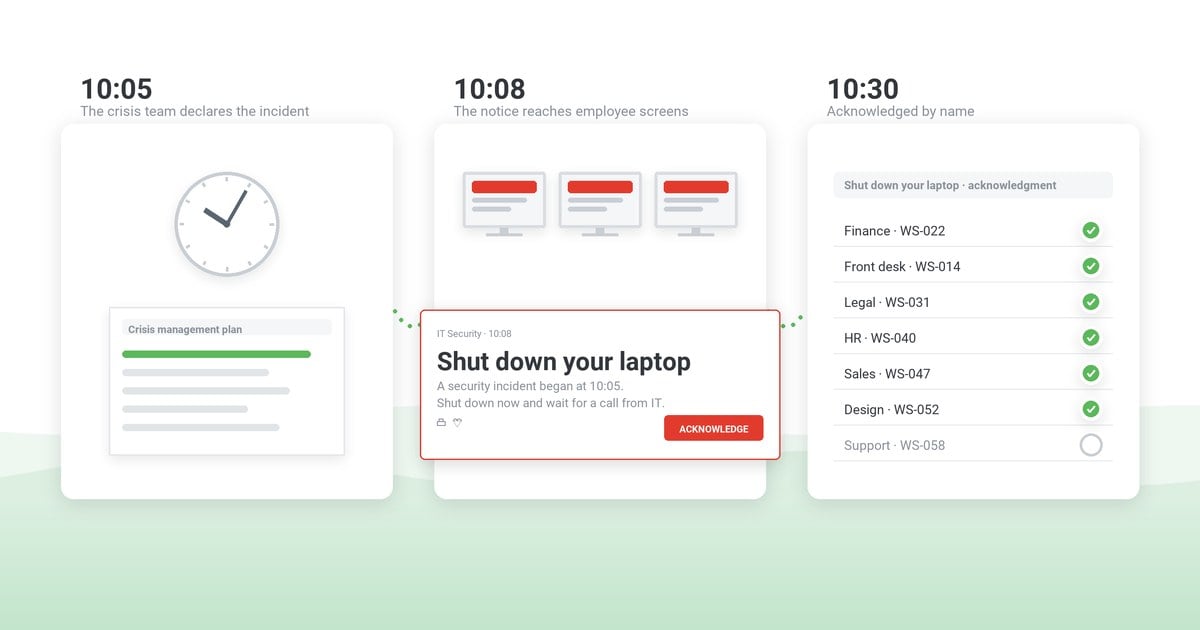
- Confirmation records. For anything mandatory, the same console sends the acknowledged alert that the content table's policy row called for. With acknowledgment switched on, the alert's close button is disabled, so a recipient can dismiss it only with Acknowledge, and the users report lists, per user, who received it and who acknowledged it. Whether they understood the text needs a separate check.
Give each device group a single owner for the setting: if Group Policy enforces a wallpaper and a tool sets one as well, the two can overwrite each other, and the result is the hardest kind of ticket to reproduce. Keep the desks whose build standard requires a locked background on the policy that already documents the lock, and let the tool serve the desks where campaigns matter.
For the feature overview, see DeskAlerts corporate wallpaper; for the screensaver and lock screen modules, which run on Windows only, see the corporate screensaver and corporate lock screen pages. As with any route, include roaming laptops and virtual desktops in the pilot ring before a campaign relies on them.
From approval to end date: one wallpaper campaign in DeskAlerts
In a demo, watch the console hold one wallpaper for approval, send it to a single site's Windows and Mac computers, and take it down on its end date.
Frequently asked questions
What makes a good desktop wallpaper for work?
One message that stays true for weeks, centered in the image, readable at a glance and safe to show on a customer screen share.
What size should a desktop wallpaper be for a mixed fleet?
A 3840 × 2160 master, plus a 5120 × 2880 export if the fleet includes 5K Mac displays.
What are good corporate desktop wallpaper ideas?
Slow-changing items that are safe on a screen share: the service desk number, how to report a suspicious email, each site's assembly point and a campaign with a fixed end date.
Can a desktop wallpaper show who read a policy update?
No. Nothing records whether anyone looked at a wallpaper; the record of who read a policy comes from a desktop alert with acknowledgment.

 Steve Wilson: Oct 23, 2026, 9:00:00 AM