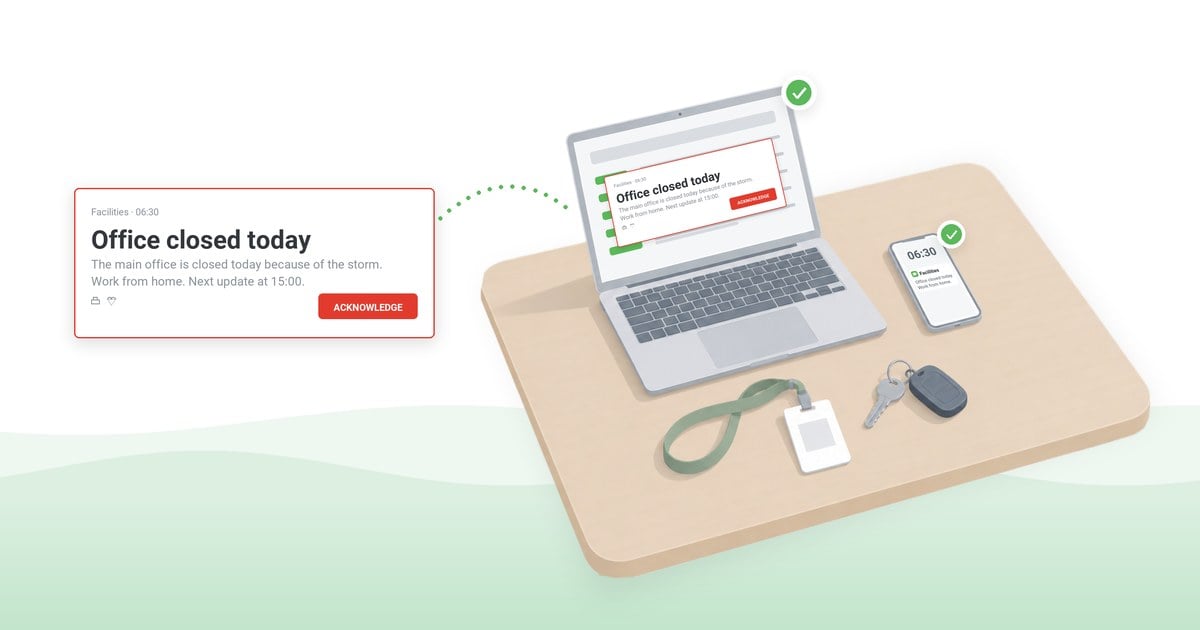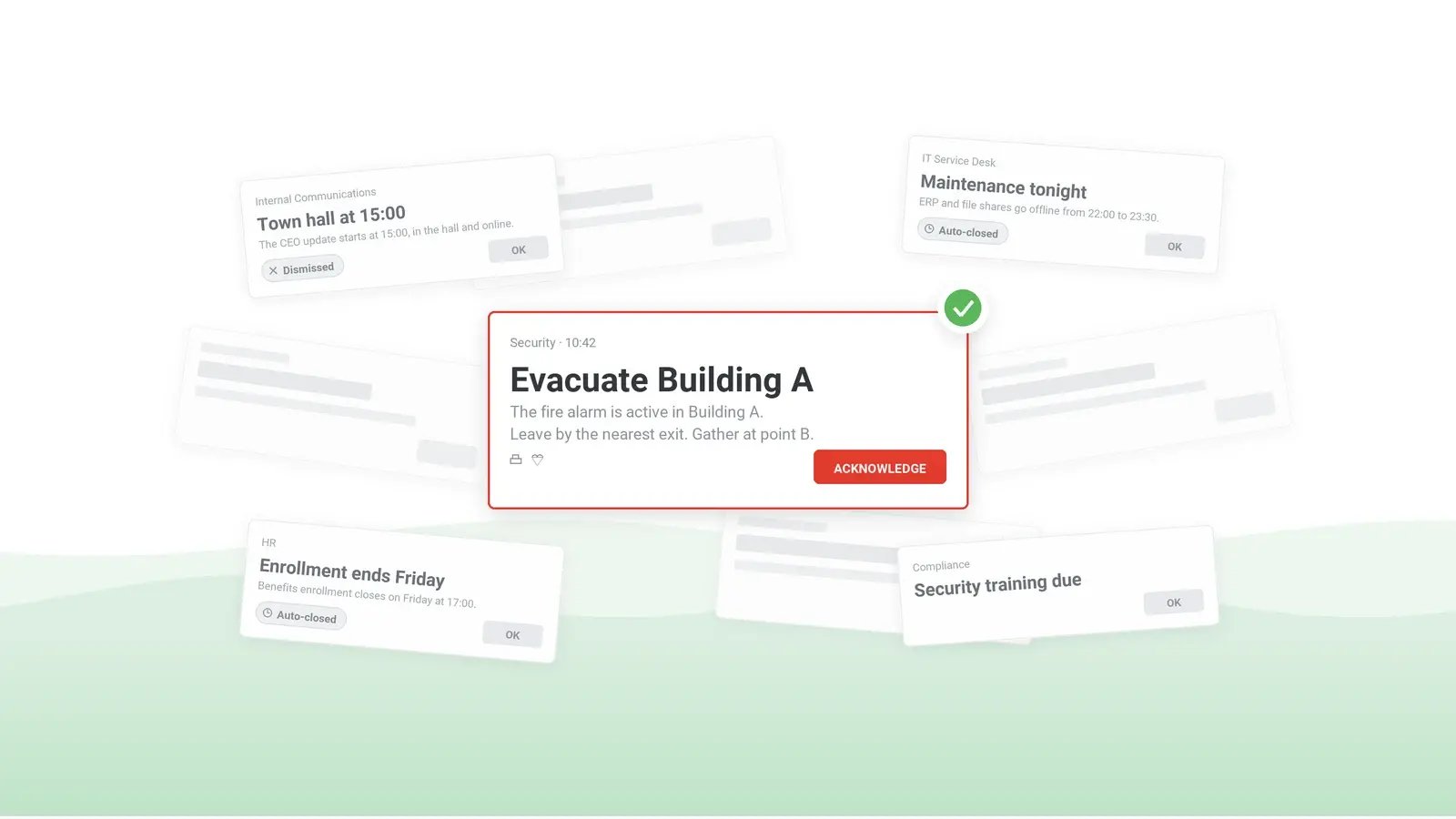
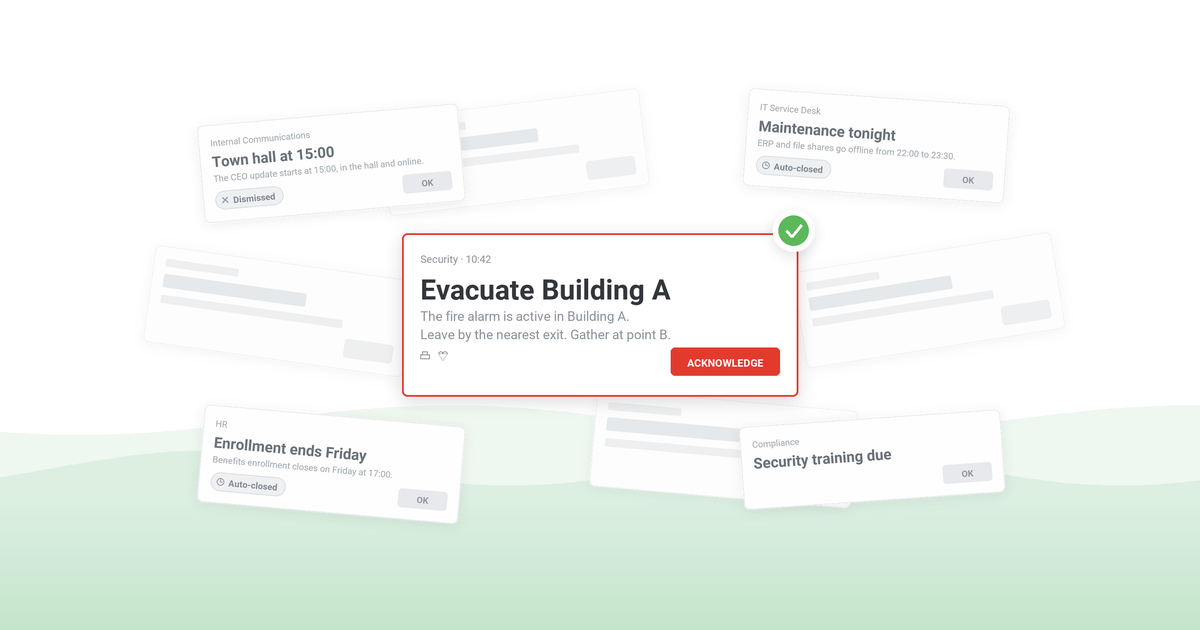
Employees ignore alerts when the alert stream has taught them that most alerts can wait: company-wide sends that concern only a few people, routine and critical notices in the same format, and a pace set by whichever team sends the most. Senders can reverse it: send fewer alerts to narrower groups, keep screen takeover for notices that need action now, and watch where acknowledgment rates start to fall.
Table of Contents
1. The cost of notification fatigue during an incident and before one
2. Six sender habits that teach employees to ignore alerts
3. Seven design rules for alerts employees read
4. Desktop alert software with publisher policies makes the rules hold across every sender
5. A one-month audit gives management three figures and two decisions
6. Frequently asked questions
The cost of notification fatigue during an incident and before one
The first cost is the one the alert stream exists to prevent. When a security instruction or an evacuation notice looks like the routine alerts before it, it is dismissed in the same way, and someone then has to explain to management why staff who "got the alert" did not act. In an incident, each person who missed it becomes a call, a chat message or a manager's walk around the floor, and the bridge fills with "did everyone get this?" when it should be working the problem.
Two costs build up quietly, before any incident. Employees who find alerts irrelevant may disable them where they can or ask IT to remove the agent, so for them the channel is missing on the day a critical alert goes out. And where routine alerts require acknowledgment, people tend to click through by reflex, so the acknowledgment on the alert that matters proves less – and that is precisely the acknowledgment an incident review, an auditor or a regulator will check afterward.
A fourth cost is paid on every alert, critical or not: the interruption itself. Observing 24 information workers, Mark, González and Harris found that 57% of units of work were interrupted and that interrupted work, when taken up again the same day, had waited on average about 25 minutes (CHI 2005). A later laboratory study found that interruptions raised stress and time pressure even when people finished the task faster (Mark, Gudith and Klocke, CHI 2008). Neither measured alerts, but both suggest that the larger cost of an alert lies in the work it interrupts.
Six sender habits that teach employees to ignore alerts
What causes desktop notifications to be ignored by employees is, in most organizations, a set of sender habits rather than a workforce that cannot pay attention. There is little research on workplace alert streams as such: the studies in this section come from interruptions at work and from clinical alarm fatigue, and their figures are pointers rather than benchmarks.
Volume. The pace is set by the busiest senders, not the average sender: one team pushing several company-wide alerts a day sets the reading habit for every alert after it, including the security team's. In a study of 112 primary care clinicians, each additional reminder in a patient visit was associated with a 30% lower likelihood of a reminder being accepted, and repeated reminders were accepted even less often (Ancker et al., BMC Medical Informatics and Decision Making, 2017). The Joint Commission's Sentinel Event Alert 50 cites estimates that 85% to 99% of hospital alarm signals do not require clinical intervention (April 2013), and links that volume to desensitized staff – what clinicians call alarm fatigue.
Every alert looks the same. A reminder to finish mandatory training and an instruction to disconnect from the VPN during an active incident arrive in the same window, with the same color and the same sound. When the format carries no signal of urgency, people triage by sender instead – and the security team becomes one more sender. In a two-week field study of 20 employees by Iqbal and Horvitz of Microsoft Research, post-study surveys suggested that the sender and subject shown in the pop-up were usually enough to decide whether a message needed attention right away (CSCW 2010).
Alerts that do not concern the recipient. A change-freeze notice for one data center's systems, or one plant's fire-drill schedule, sent to the whole company is noise for everyone else. Senders pick "all employees" when the right group does not exist in the directory, which makes targeting partly a directory problem. In the same study, after a week with notifications switched off, 17 of 18 respondents wanted them back, and several asked to be notified only of important messages – one proposed filtering by sender or group.
Bad timing. A routine send that lands during a shift handover, in the middle of a presentation or overnight in another region is likely to be closed unread and not reopened. An identical interruption cost more when it arrived mid-task than between tasks: depending on the task, participants in a 50-person laboratory experiment needed 3% to 27% more time, made twice as many errors and reported more annoyance and anxiety (Bailey and Konstan, Computers in Human Behavior, 2006).
No follow-through. If an alert asks for nothing and nobody looks at who closed it, people learn that closing it is enough – including on the day an alert does ask for action.
Channels competing with each other. The same notice by email, in a Teams channel and as a pop-up within minutes is three interruptions for one message, and a sign that three teams each own a channel while nobody owns the sequence.
Email shows the same pattern at higher volume – see email overload and, for the wider picture, communication overload and burnout.
Seven design rules for alerts employees read
The remedy is the one a security operations center applies to reduce alert fatigue. Each rule is a sender decision. Written into templates, sender permissions and an approval step, the rules hold when dozens of teams publish, not only when one careful team does. Apply the approval step to routine and urgent sends; critical alerts go out without it, because an evacuation cannot wait for sign-off – there the controls are the short sender list and message templates written and approved in advance, so nobody drafts under pressure.
1. Use a few priority levels, with screen takeover for critical alerts only. Decide who may send at the critical level and keep that list short, but cover every shift and region – an on-call role rather than one named person, or else the only person with critical rights is asleep when the 3 a.m. incident starts. Every takeover that was not critical spends credibility the next real one needs. Awareness content sent under the security team's name spends the same credibility, so keep that sender name for instructions.
| Priority level | Use it for | Format | Who may send |
|---|
| Critical | Action now: an evacuation, a security incident, an outage workaround | Full-screen alert (screen takeover) with acknowledgment | A short named list: security, facilities, the incident manager |
|---|
| Urgent | Needed today: a change freeze, a system cutover, a deadline | Pop-up alert; acknowledgment only where a record is needed | Department leads and IT |
|---|
| Information | Can wait: news, reminders, training | Desktop ticker, corporate wallpaper or lock screen | Any approved publisher |
|---|
For an evacuation, the desktop alert adds instructions to the building alarm; it does not replace it. Decide as well which screens a takeover must never reach – a control-room console, a clinical workstation during a procedure – and keep them out of the critical audiences.
2. Target by group, not "all." Send targeted alerts to the departments, groups, sites or roles they concern. The groups usually exist already in Active Directory or Microsoft Entra ID; for a single building or site, an IP address range does the job. IP ranges follow the network, not the person – staff on VPN typically get addresses from the VPN pool – so check which range remote staff fall into before a site-level send. Review the groups as well as the alerts: a stale group misses new hires and contractors.
3. Time alerts to the working day. Schedule routine alerts for the start of the workday or just after a shift handover, not whenever they are written – and per site, shift and region, not at the sender's 9 a.m. Routine alerts can also be held back while someone shares their screen, so an internal notice does not appear in front of a client on the call. Use recurring alerts only where repetition is the point – a weekly reminder until a deadline, a monthly security tip at the Information level – and end the recurrence when its purpose is met.
4. Let routine alerts close themselves. An informational alert that closes on its own after a set time costs no one a click. The trade-off: it can disappear before someone away from the desk sees it, so do not auto-close an alert people must act on. Keep acknowledgment for the messages where a record of who has confirmed them matters – a policy change, a security instruction. On shared workstations and generic logins – a nurses' station, a shop-floor terminal – the acknowledgment names the account, not the person, so keep those audiences out of the figures you will put in front of an auditor.
5. Ask for one action. For example: acknowledge, answer one question or open one link. The single action is also your measurement: one acknowledgment or one answer per alert gives figures you can compare across senders and months, while three links and no request give you nothing to compare.
6. Send on one channel first, and on the next only to those it has not reached. Resend only to the people who have not received or not acknowledged it, and reach those still missing by a second channel such as SMS. Put the escalation on a clock – for an urgent notice, say, a resend after an hour and the second channel before the end of the shift – so it does not depend on someone remembering to check. For critical alerts where minutes matter, send on every channel at once and accept the duplicates. Our guide to alternatives to email for urgent employee notifications compares the channels.
7. Measure where fatigue starts. A falling acknowledgment rate for one sender or one audience shows where fatigue is setting in, while there is still time to change that sender's habits; a rising not-received count for one audience can mean devices where the alert agent has been disabled or removed. Compare month by month in the alert statistics: a single low figure is noise; a slide over three months is a trend.
Desktop alert software with publisher policies makes the rules hold across every sender
Four of the seven rules – who may send at the critical level, which audiences each publisher may address, when a routine alert goes out and whether it closes itself – hold only if the tool that sends the alert enforces them for every publisher. The seventh needs acknowledgment figures per alert, per sender and per recipient that an email log or a channel's view count does not keep.
DeskAlerts, our own desktop alert software, makes several of the seven rules binding through publisher policies and the approval workflow, and supports the others with scheduling, auto-close, resend and the alert statistics.
Publisher policies set which recipient lists, alert options and settings each publisher can use. An optional approval workflow holds an alert at Pending Approval until a publisher who holds the approval role marks it Approved or Declined. Recipients are drawn from one or more Active Directory servers, from Microsoft Entra ID or from a site's IP range, and alerts can be scheduled or set to recur. Rule 1's short list is then a policy setting rather than a convention: the alert options and recipient lists reserved for critical sends sit in a few publishers' policies, not in every publisher's. The pre-approved messages for critical sends have a home as well: the Emergency Alerts module keeps pre-configured alerts – "Fire in the building," for example – as buttons that only the authorized senders see in the agent, with the audience and acknowledgment set in advance.
Desktop alerts reach Windows and macOS computers as a full-screen alert, a pop-up, a scrolling ticker or a wallpaper; on Windows, also as a screensaver or a lock-screen message. At high priority the alert opens above every other window; if acknowledgment is switched on, the Acknowledge button is the only way to close it. On Windows and macOS, an alert can be set to close itself after a chosen interval. On Windows, routine alerts can be held back while an employee shares a screen in Microsoft Teams or Zoom.
Each alert's delivery and acknowledgment counts export to CSV or XLSX for an incident review or audit file. The Alert Report lists each alert's sender, channels and open rate, the Users Report gives the status of every recipient, and a second send – an action the publisher takes on the alert – can be limited to those who have not acknowledged or not received it.
Acknowledgment is documented for desktop alerts. On phones, the DeskAlerts app counts an alert as received once the employee opens it in the app, so there the open is the fatigue signal.
Email and a Teams channel post leave the last word to the recipient: both can be muted, an importance flag does not hold a message on screen, and a read receipt or a reaction is the recipient's to give or withhold. SMS reaches phones but, on its own, keeps no record of who acted on the notice. The "all employees" habit survives any tool whose recipient lists are open to every publisher, which is why the publisher policy, not the channel, is what changes it. What the software does not do is choose the one action each alert asks for, set a weekly ceiling on company-wide sends, choose the critical-sender list or name the stream's owner; it holds the result of those decisions and shows, month by month, whether they are working.
A one-month audit gives management three figures and two decisions
Whichever tool sends the stream today, export one recent month of alerts with sender, priority, audience, channel, send time and, where required, acknowledgment rate and times, and go through it with the teams that send the most. What goes to management is not another report but three figures: alerts per person per week, the share of critical-level sends that were not critical, and the acknowledgment trend on required alerts.
- Count alerts per person per week, by audience – the baseline for the ceiling.
- Fix the denominator before reading any rate: compare each audience's recipient count with the headcount it is meant to cover. Contractors on unmanaged devices and shop-floor or field staff without a computer of their own are outside the rate altogether, and an auditor asks about them before asking about the rate.
- Mark the acknowledgment-required alerts that did not need a record – these switch to auto-close under rule 4.
- Mark the company-wide alerts that concerned only part of the company; what remains, counted per week, is the number that truly needed everyone – a defensible first ceiling, since no number transfers between organizations.
- Mark the alerts sent at the highest priority that did not require action now; their senders are the first to review for the critical list. For the ones that did require action, note the share acknowledged within 15 minutes of the send – in an incident, that is what the review asks for, not the end-of-day rate.
- Mark the notices that went out on more than one channel to the same people at the same time; these move to the one-channel-first sequence in rule 6.
- On the alerts that required acknowledgment, compare acknowledgment rates by sender and by audience over the month; this is the baseline for the monthly trend in rule 7.
- Agree on, and write down, a weekly ceiling for company-wide alerts and the short list of people who may send full-screen alerts.
- Name one owner for the alert stream – not the busiest sender – who holds the ceiling and the critical-sender list and answers for both in an incident review.
If the export cannot be produced – no priority field, no audience, no acknowledgment rate per alert – that gap is the first finding.
See the audit's three figures come out of one alert stream
In 30 minutes: priority levels with a named sender list for the critical one, Active Directory groups as audiences, scheduling and auto-close, and the alert statistics.
Frequently asked questions
What is notification fatigue?
Notification fatigue is the drop in attention that follows sustained over-notification: people stop judging alerts one by one and dismiss, ignore or mute them.
Is notification fatigue the same as alert fatigue?
The same effect under two names. Alert fatigue is the term in IT monitoring, cybersecurity operations and healthcare, where staff face alarms that mostly need no action; notification fatigue is used for the alerts and messages the whole workforce receives.
What is the difference between notification overload and notification fatigue?
Overload – alert overload, in IT terms – is the input, and fatigue the learned response.
How do companies improve engagement with desktop alert software?
Not by raising an open rate. Engagement with an alert stream is the share of recipients who do the one thing an alert asks, and it is protected more than it is raised – by asking only when an action is needed.

 Steve Wilson: Nov 5, 2026, 8:00:00 AM