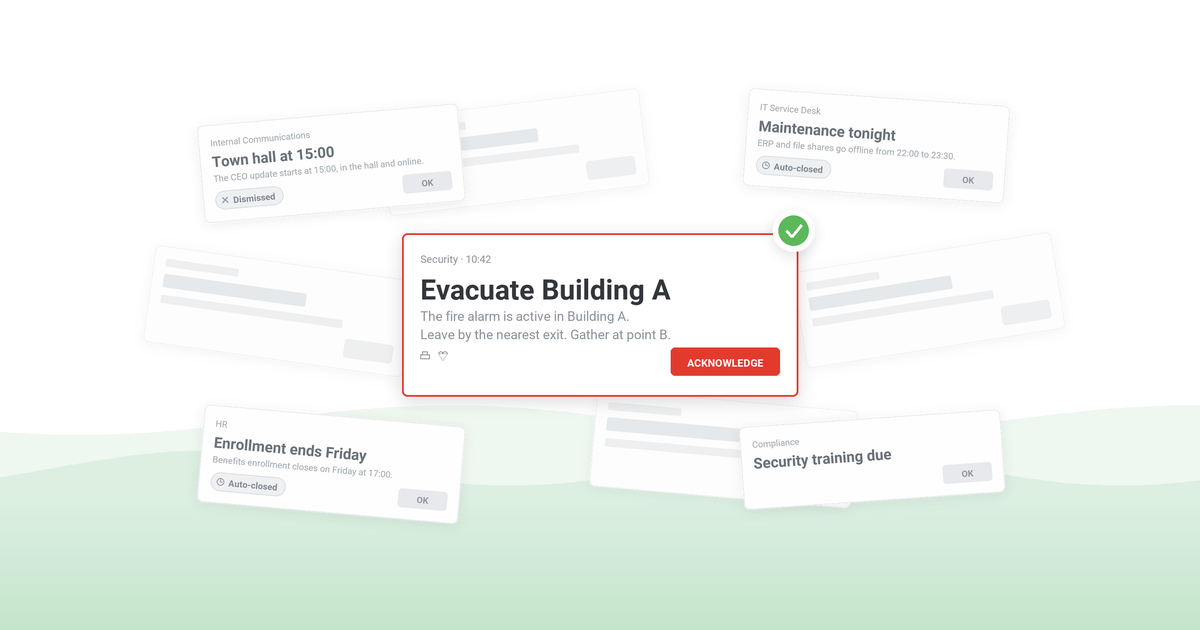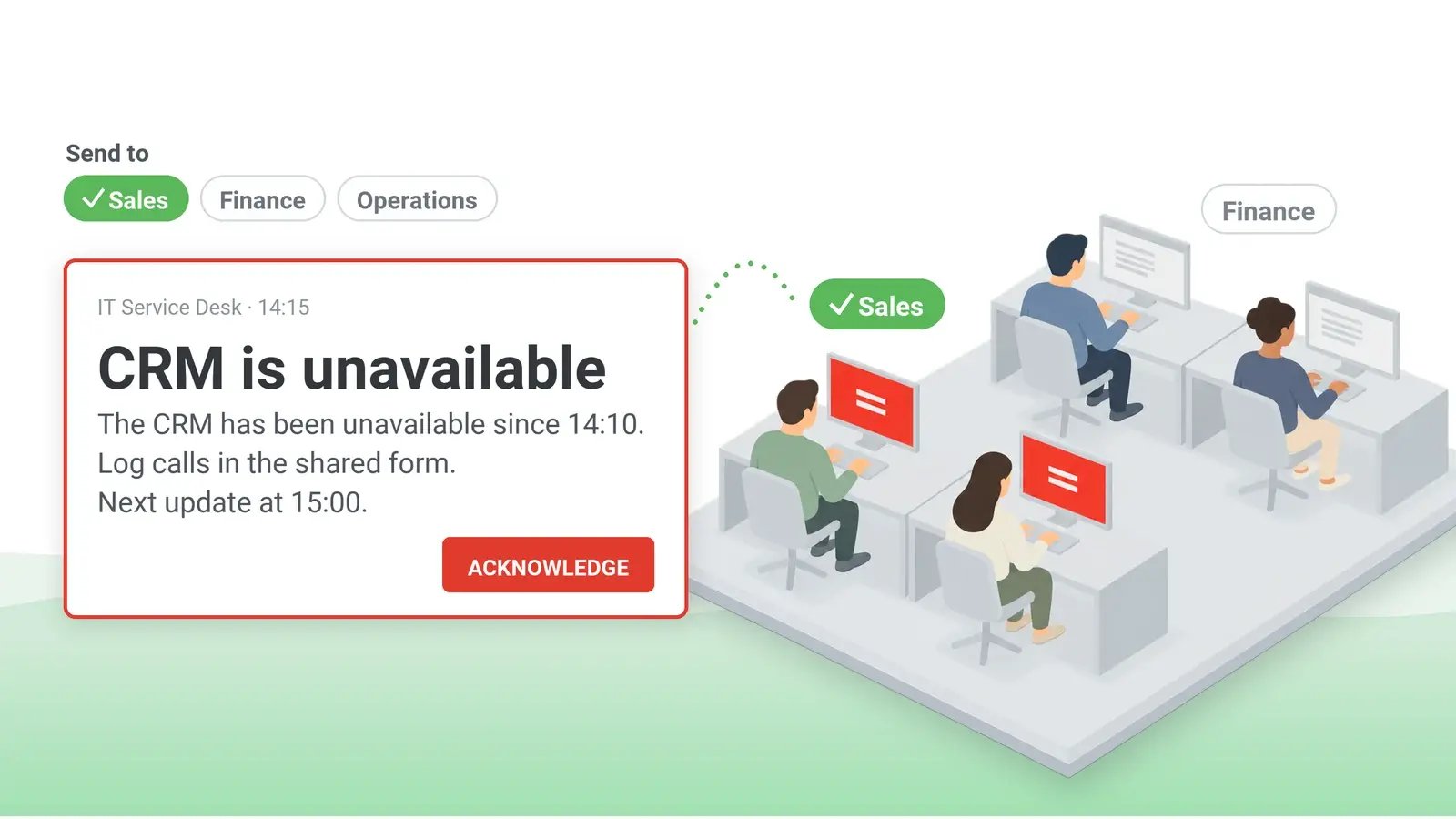
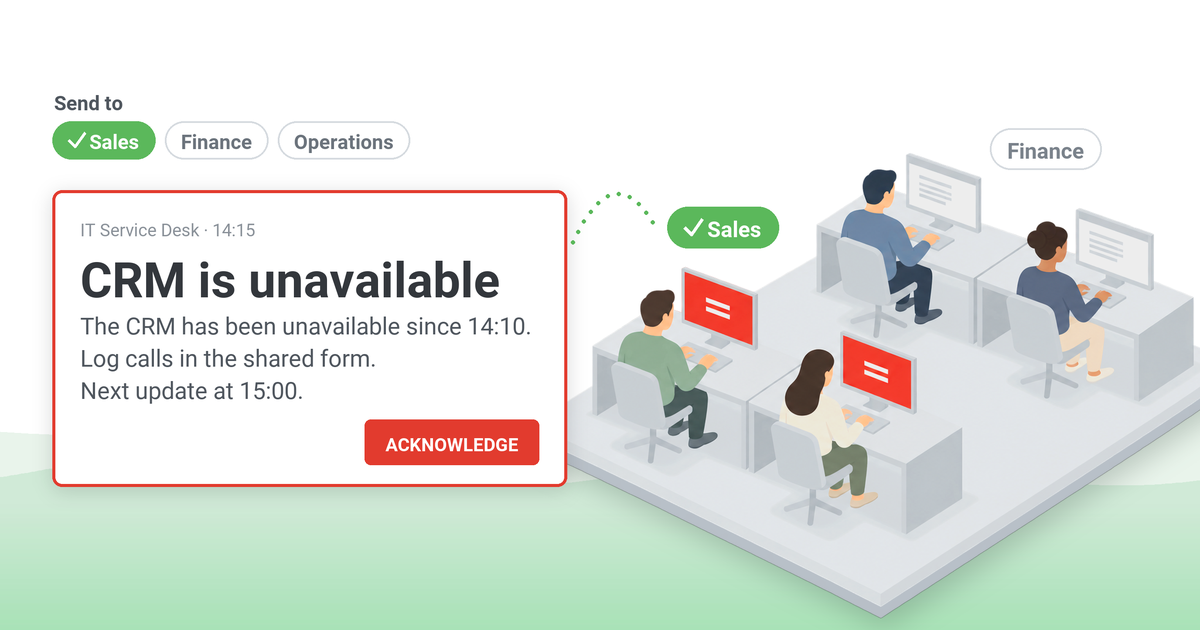
Not every alert needs to reach the entire organization. An IT outage may affect only one department, while a safety incident may require notifying employees at one location.
With targeted employee notifications, you can send messages to specific departments, locations, or roles using Active Directory groups, organizational units (OUs), or IP-based targeting.
This guide explains how to set up recipient groups, keep them accurate, and make sure the right employees receive the right alerts.
Table of Contents
1. Four ways to choose who receives an alert
2. Which method fits which alert
3. How targeted alerts work in DeskAlerts
4. Keeping recipient groups accurate
5. Avoiding too many alerts
6. Where to start
7. Frequently asked questions
Four ways to choose who receives an alert
The information you need to target alerts usually exists already – in the directory, in the network, or with the teams that appoint people to special roles. There are four common ways to use it.
Directory groups in Active Directory and Entra ID
Departments, offices, and teams usually exist as groups in Active Directory or Microsoft Entra ID. When HR and IT update them as people join, move, or leave, an alert group based on them stays current without extra work from the communications team. For most department and office alerts, these groups are the best place to start.
If no suitable group exists, you can create one in Microsoft Entra ID with a membership rule. A dynamic membership group includes every user whose department, city, job title, or office attribute matches the rule, and it updates itself when those attributes change. Microsoft's documentation on rules for dynamic membership groups points to two things to check first. The organization needs enough Microsoft Entra ID P1 licenses to cover every user who belongs to at least one dynamic group; the licenses do not have to be assigned to those users. The group also depends on the attributes behind it: if users or local administrators can edit the department field, they can also change who receives that department's alerts.
Organizational units
Organizational units (OUs) can also serve as recipient groups, but check how your domain uses them first. Microsoft's guidance on OU design explains that OUs are created for purposes such as delegating administration and applying Group Policy, and that they do not need to reflect the departmental structure. In some domains OUs match sites or business units and work well for alerts. In others they follow administrative boundaries, and a department group is the better choice.
IP ranges for office locations
An office's IP range reaches the computers connected to that office network, whoever is using them. This suits alerts about a building – a heating failure, a fire drill, or a network fault on one floor – where the location of the computer matters more than the person's department.
Groups you create yourself
Some audiences have no directory equivalent: fire wardens, first aiders, the crisis team, or contractors on one project. Someone has to build these groups by hand, so each one needs a named owner who updates it when people change roles.
Email distribution lists can seem like a quick source for such groups. Check them before reuse: they were set up for mail, may have several owners or none, and often contain other lists, which makes their membership hard to verify.
Which method fits which alert
The right method depends on the alert. A policy change concerns people in one function; a building issue concerns the people who are physically there.
| Alert | Recipient group | What to check |
|---|
| A policy change for one function, such as a new approval limit in Finance | Department group | People who work for Finance but are recorded under another department |
|---|
| A facilities issue in one building, such as a heating failure or an access-control fault | Site group or OU, or the building's IP range | Whether the alert is for the people assigned to the site or for everyone in the building |
|---|
| A changed instruction for one shift or production line | Role group, such as shift supervisors at that site | Usually a hand-built group with a named owner |
|---|
| An outage of one business application | Users of that application | License or access groups are often more accurate than department groups |
|---|
| An emergency at one site | Everyone at the site that day | Who is on site, not only who is assigned there; test this group most often |
|---|
Location can mean two different things. The directory records where an employee is assigned. The network shows where a computer is connected now. A site group reaches the assigned staff wherever they work, including from home. An IP range reaches the computers on that office network, including visiting colleagues. Whether computers connected over VPN fall inside an office range depends on how the VPN assigns addresses, so confirm this with the network team before you rely on IP targeting for a site.
Roles are harder to target than departments or locations. Job titles in HR systems are often inconsistent, and they rarely show operational duties such as evacuation lead for one building. For combined audiences, such as supervisors at one plant, create a single group in the directory – for example, a dynamic group that combines department and city – instead of selecting several groups during an incident.
For outage notices, see our guide to notifying only the teams an outage affects.
How targeted alerts work in DeskAlerts
DeskAlerts sends alerts to the directory groups, OUs, and IP ranges an organization already has, so department, office, and site alerts do not need a separate address book.
- Recipient selection. A publisher can send an alert to everyone, to individual users, to groups, to OUs, to IP ranges or IP groups, or to specific computers. Groups that the directory does not hold, such as fire wardens, can be created in the DeskAlerts console. For internal communications: one tool covers department notices, building alerts, and messages to a single team.
- Sender rights by audience. Publisher policies define what each sender can do, including which recipients they can select, and publishers do not get access to directory synchronization. For IT and security: a regional manager can be limited to their own region's recipients.
- Synchronization with your directory. DeskAlerts synchronizes all or selected users, groups, and OUs from Active Directory over LDAP or secure LDAP, and users and groups from Microsoft Entra ID, including organizations with more than one tenant. Automatic synchronization is optional. Setup is described on the Active Directory alert targeting page. For IT: with automatic synchronization on, recipient groups follow the joiner, mover, and leaver process you already run.
- Approval before sending. An optional approval workflow holds an alert as Pending Approval until a reviewer approves it. For internal communications: a second check before a message reaches a large audience.
- Prepared emergency alerts. With the Emergency Alerts module, administrators prepare emergency alerts in advance – message, audience, and delivery settings – and authorized senders trigger them with one click. For security and EHS teams: nobody has to choose recipients under pressure during an incident.
- Volunteer groups from a survey. A survey answer option can be linked to a group, so employees who choose that answer are added to it. For internal communications: a simple way to build a volunteer or on-call list without a spreadsheet.
- Several channels for one alert. One alert can reach the desktop and the mobile app and also go out by email and by SMS through a connected SMS gateway. For everyone sending alerts: employees away from their desks can still receive the message on their phone or by email.
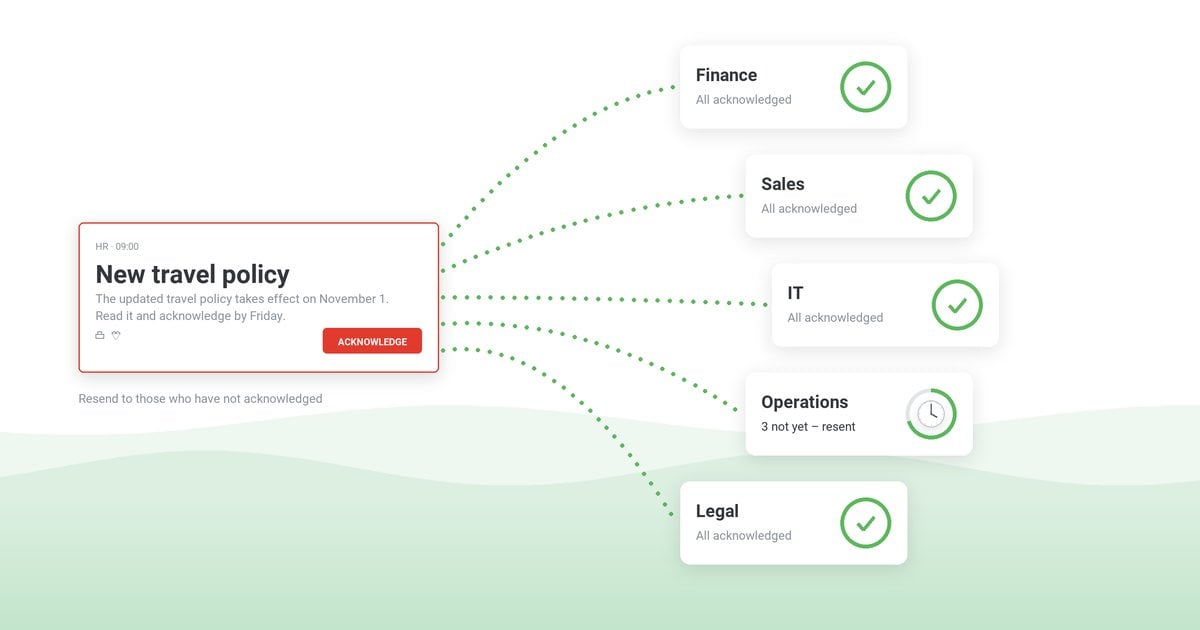
- Follow-up and reporting. The alert statistics and the Users Report show who received the alert, who did not, and who acknowledged it, and the results export to CSV or XLSX. An alert can be resent only to those who have not received it or only to those who have not acknowledged it. For IT and security: a record of who received and acknowledged each alert, and a quick way to reach those who missed it. Our guide to an acknowledgment record that holds up covers what an audit expects from that record.
Location targeting in DeskAlerts relies on the directory structure, IP ranges, and named computers, so keep those records current for each site.
Case study – Healthcare, Montreal
Reaching only the staff concerned, in more than one language
Task: the communications team at CSSS de la Pointe-de-l'Île, then a Montreal public health and social services organization with about 10,000 employees, needed to reach specific groups without disturbing everyone else. Targeting: audiences built on the group hierarchy already in Active Directory, with messages prepared in more than one language. Result: employees outside an audience were not interrupted.
Read the CSSS de la Pointe-de-l'Île case study ›
Case study – Pharmaceuticals, Austria
IT notices for the affected departments only
Task: the IT department at Baxalta needed to inform more than 3,000 employees in Austria about outages, recoveries, and planned downtime. Targeting: notices sent only to the departments affected. Result: notices reached only the departments affected, which the case study credits with reducing disruption. For the planned extension to Switzerland, the team intended to give senders rights limited to that country's part of the Active Directory domain.
See how Baxalta targets IT notifications by department ›
Case study – Higher education, United Kingdom
Alerts kept for urgent, relevant issues
Task: the University of Southampton needed staff and students to take alerts seriously. Targeting: messages to the specific groups of users or rooms an issue affects, with alerts kept for urgent cases such as short-notice infrastructure failures and fast-spreading malware. Result: according to the university's Senior Computing Officer, keeping alerts for these cases means that when an alert appears, users know "it's something important and directly relevant to them".
Read how the University of Southampton limits alerts to emergencies ›
Keeping recipient groups accurate
Group membership changes with every reorganization, merger, or directory cleanup, and these changes are easy to miss. Three habits help keep targeting accurate.
- Agree who maintains what. A common split: IT owns the directory connection, HR keeps the department and office records up to date, and the team that sends each alert type checks that its group is still the right one.
- Test each group, not only the tool. Send a short message labeled as a test to the group itself and compare the number of recipients with the number you expected. A large gap usually means outdated membership or computers without the DeskAlerts agent. Delivery statistics show who missed the test, not who should not have received it, so ask a few recipients whether the message concerned them.
- Retest after directory changes. Check the affected groups after a reorganization or an OU cleanup, and test emergency groups during scheduled drills, when a wrong audience can be corrected before a real incident.
A shared prefix such as ALERT- on every group used for alerts also helps: directory administrators can see that the group is in use before they remove it.
Avoiding too many alerts
Targeting reduces the number of alerts each employee receives, but it does not prevent alert fatigue on its own. Repeated irrelevant or overly intrusive alerts make employees less likely to pay attention when an important notification arrives.
- Match the format to the urgency. Routine updates for a department fit a scrolling ticker or a screensaver. Desktop alerts that stay on screen until the employee confirms them are for messages that require action now.
- Give each alert type one sender. Otherwise an employee who belongs to several groups may receive the same news from IT, facilities, and a regional manager.
- Keep company-wide alerts for company-wide issues. Ask for a stated reason or a second approver before an alert goes to everyone.
Other causes of alert fatigue are covered in why employees start ignoring alerts.
Where to start
Start with the alert type that most often goes to the whole company today. Decide who actually needs it, create that group from the directory or by hand, and send it a test message before you use it for a real alert.
Send alerts to the groups you already manage
DeskAlerts sends alerts to your Active Directory and Entra ID groups, OUs, and IP ranges, and exports a record of who received and who acknowledged each one.
Frequently asked questions
How do I send an alert to only one department?
Select the group that represents that department – an Active Directory group or OU, or a Microsoft Entra ID group based on the department attribute – as the only recipient of the alert.
Can alerts be targeted by office location or IP range?
Yes. Use a directory group or OU to reach the people assigned to an office, or the office's IP range to reach the computers connected there. A group or OU suits an alert about the people; an IP range suits an alert about the building and the computers in it.
How do I send the same alert to offices in different time zones?
Send it separately to each regional group and schedule each send for working hours in that region. A single send timed for headquarters can arrive outside working hours in other offices. Regional groups built from the directory's office or country attribute stay accurate as people move between locations, as long as HR keeps those attributes up to date.
How can I check who received and who acknowledged a targeted alert?
DeskAlerts records receipt and acknowledgment separately for each alert. The alert statistics and the Users Report show who received it, who did not receive it, and who acknowledged it, and the results export to CSV or XLSX. Acknowledgment has to be enabled on the alert: the close button is then disabled, and the employee closes the alert only by clicking Acknowledge.

 Steve Wilson: Nov 12, 2026, 8:00:00 AM