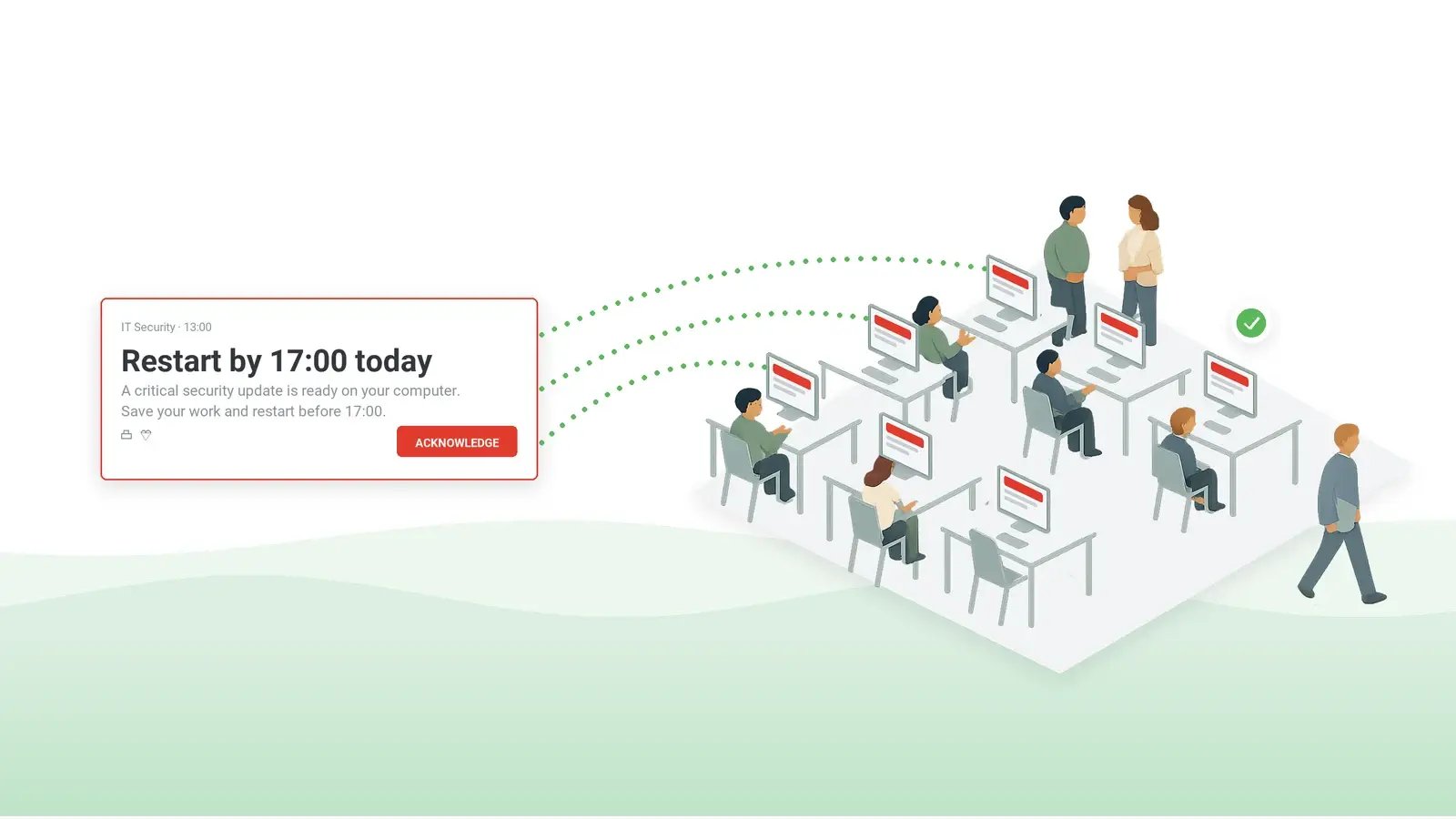
Windows has no built-in command that sends a pop-up to every computer on a network. The net send command has not been supported since Windows Vista, and its built-in successor, the msg command, reaches the user sessions on one computer at a time. To cover several computers, administrators run msg through PowerShell remoting. Some notices have to reach the whole company, stay on screen until people confirm they have read them, and leave a record of who received and acknowledged them. That job moves to desktop alert software.
Table of Contents
1. What happened to net send
2. The msg command today
3. PowerShell: the same message on several computers
4. How to send a pop-up to all computers on a network: net send, msg, PowerShell, or alert software
5. Other ways administrators do it, and what each lacks
6. When you need alert software
7. Frequently asked questions
What happened to net send
The net send command belonged to the Windows Messenger service, not the chat program of the same name. The service accepted text messages over the local network and showed them in a dialog box on the receiving computer. According to Wikipedia’s article on the service, it was designed for administrators to notify Windows users about their networks. It was later misused to send pop-up advertising over the internet, and Microsoft disabled the service by default in Windows XP Service Pack 2. Microsoft’s documentation states that the message functions behind it are not supported as of Windows Vista, because the Alerter and Messenger services are not supported.
The built-in command used instead is msg, which Microsoft documents as a Remote Desktop Session Host command. Hence its main limit: it messages the sessions on one server or computer.
The msg command today
The msg command is documented for Windows 10, Windows 11, and Windows Server 2016 and later. Microsoft defines it as a command that sends a message to a user on a Remote Desktop Session Host server. On a workstation, it sends a message to the user sessions on the computer where you run it. The sender must have the Message special access permission.
The exact syntax, the parameter reference, and five worked examples are on Microsoft Learn’s page for msg. In plain terms, the command takes these parts, in the order of Microsoft’s parameter table:
- Who receives the message. A user name, a session name, a numeric session ID, a file that lists several of them, or an asterisk, which means every user logged on to the computer. Without a recipient, the command displays an error. A session named as the recipient must be active.
- Which server. An optional server parameter names the Remote Desktop Session Host server whose sessions receive the message. Without it, the message goes to the server you are logged on to. Administrators also use this parameter to address another workstation; Microsoft’s page documents only the server case.
- How long it stays on screen. An optional time parameter sets the number of seconds. Without it, the message disappears after 60 seconds.
- Two further parameters. A verbose parameter reports what the command is doing. A wait parameter makes the command wait for the user’s acknowledgment that the message was received. Microsoft advises combining it with a time limit, to avoid a long delay if the user does not respond at once.
- The text. The message itself, typed after the parameters, or taken from a file. Without any text, the command prompts for it.
The five examples in the msg reference send one message to all sessions of one user, to a named session, and to every session listed in a file. The last two go to every user logged on, once with a 10-second time limit.
What msg does not do
One computer at a time. Addressing every user with the asterisk means every user logged on to the computer where the command runs, or on the one server named in the server parameter. It does not mean every computer in the domain. To reach a second workstation, you run the command again for that computer, or you script it, as the next section describes.
Other workstations need a setting change, with mixed results. Sending to another workstation often fails with “Error 5 getting session names” or “Error 1722 getting session names.” A commonly suggested fix is to let the target computer accept remote procedure calls for Remote Desktop Services: a registry setting on that computer, TCP port 445 open in its firewall, and a restart. The reports are mixed. In a Microsoft Q&A thread, the same steps did not help, and the community answer suggested enabling Windows Remote Management instead. Microsoft’s msg reference does not describe any of this. It is a deliberate per-computer change that widens what the computer accepts from the network.
Home editions. Microsoft’s documentation lists Windows 10 and 11 without naming editions. According to winhelponline and other administrators’ reports, the msg program is not included in the Home editions: the command prompt answers that msg is not recognized as a command. By the same reports, the Pro, Enterprise, and Education editions, and Windows Server, have it.
Short messages only. Ansible’s documentation for its Windows message module, which wraps msg, states that the message must be fewer than 256 characters. Microsoft’s reference does not state a limit. Keep the text to one or two sentences.
No record and no formatting. The message is a plain dialog with no formatting and no custom buttons. There is no log of who received it and no delivery report. A computer that is switched off receives nothing. For a formatted message with a record, see pop-up alerts sent through an agent.
Error messages and other symptoms
| Symptom | Likely cause | What to do |
|---|
| msg is not recognized as a command | A Home edition of Windows, by administrators’ reports | Use a Pro, Enterprise, or Education edition, or alert software |
| Error 5 or Error 1722 getting session names | The target computer refuses remote procedure calls for Remote Desktop Services, or TCP port 445 is closed | A per-computer registry and firewall change, with mixed results and a security trade-off – or alert software |
| The message disappears after a minute | The default display time of 60 seconds | Set the time parameter to a longer value |
| The command keeps waiting | The wait parameter without a time limit | Combine the wait parameter with a time limit, as Microsoft advises |
| net send does nothing on Windows 10 or 11 | The Messenger service has not been supported since Windows Vista | Use msg, or alert software for several computers |
PowerShell: the same message on several computers
PowerShell lets you run msg on a list of computers in a single run. The remote computers must accept PowerShell remoting first. Microsoft’s page on enabling PowerShell remoting describes what the enabling command does when run as administrator in Windows PowerShell on each target. It starts the WinRM service, creates a listener, and opens the firewall exception. Remoting is enabled by default on Windows Server 2012 and later. On client versions of Windows, it does not enable remoting while a network connection is set to Public. If you skip that check, the firewall allows remote access over Public networks only from the same local subnet.
With remoting in place, PowerShell’s command for running a command on remote computers takes a list of computer names. It opens a temporary connection to each computer, runs the command there, and closes the connection. If the command it runs is msg addressed to every user, the message should appear on each computer in the list. Microsoft’s pages describe the two pieces separately, so test the combination in your own environment first.
For a PowerShell pop-up message on the local computer only, PowerShell can show the standard Windows message dialog. It has a title, a text, and an OK button, on the computer where the script runs. Microsoft’s .NET documentation describes that dialog.
The remoting approach keeps the limits of msg: plain text, no record of who received the message, and nothing for computers that are off. You also maintain the list of computer names by hand. That works for a dozen machines in one office.
How to send a pop-up to all computers on a network: net send, msg, PowerShell, or alert software
| Capability | net send (historical) | msg | PowerShell with msg | Desktop alert software (DeskAlerts) |
|---|
| Reaches every computer in the organization | Broadcast to a domain or workgroup on the same subnet on systems before Windows Vista; delivery not guaranteed; no longer available | No – one computer at a time | The computers in your list, if remoting is enabled on each | Computers with the agent installed and connected, and devices that reconnect within the Keep Active period; recipients by everyone, user, group, organizational unit, IP range, or computer |
|---|
| Windows and macOS | Windows only | Windows only | Windows only | Windows 11 and macOS 12.6.1 or later |
|---|
| Employees off the network – other channels | No | No | No | Push notifications in the mobile app on Android and iOS; a text version by email and SMS through an SMS gateway; a Microsoft Teams module |
|---|
| Full-screen display for critical messages | No | No | No | Yes – screen takeover with the full-screen pop-up variant |
|---|
| Acknowledgment and per-person status | No | The wait parameter waits for an acknowledgment; nothing is stored | No | With acknowledgment enabled, an Acknowledge button that must be clicked to close; Received, Not Received, and Acknowledged per recipient |
|---|
| Audit reports | No | No | No | Export to CSV or XLSX; per-user report |
|---|
| Scheduling and recurring messages | No | No | Only through Task Scheduler | On demand, scheduled, or recurring (daily, weekly, monthly, custom) |
|---|
| Targeting by Active Directory or Entra ID group | No | No | Only if your script reads the group | Groups synchronized from Active Directory or Microsoft Entra ID |
|---|
Unless attributed otherwise above, facts for net send, msg, and PowerShell come from Microsoft’s documentation; facts for DeskAlerts come from the DeskAlerts 11.5 knowledge base.
Other ways administrators do it, and what each lacks
Administrators reach several computers in other ways too. Each one solves a different problem. None of them records who read the message.
- Microsoft Intune and Configuration Manager push a notification or a script to managed devices. They are deployment tools: the message is delivered as a task, not shown as an alert, and nothing records who read it.
- A Group Policy logon message shows a text at sign-in only; employees who are already logged on do not see it.
- Task Scheduler repeats a script on a schedule and nothing more.
- RMM tools can run the msg command on managed endpoints with the same limits as msg itself: one computer at a time, plain text, no record.
- Microsoft Teams, Slack and email reach the people who are looking at them at that moment.
Alert software uses the same deployment tools for its own agent: DeskAlerts installs through SCCM, Intune or Group Policy. It then delivers alerts over its own channel, with the acknowledgment record the tools above do not keep.
When you need alert software
The msg command was built for the sessions on one server; a company-wide notice needs a different tool. When a notice has to reach the whole company, stay on screen until people confirm they have read it, and show who has not, the job moves to desktop alert software. This is what DeskAlerts does for that job, as documented for version 11.5:
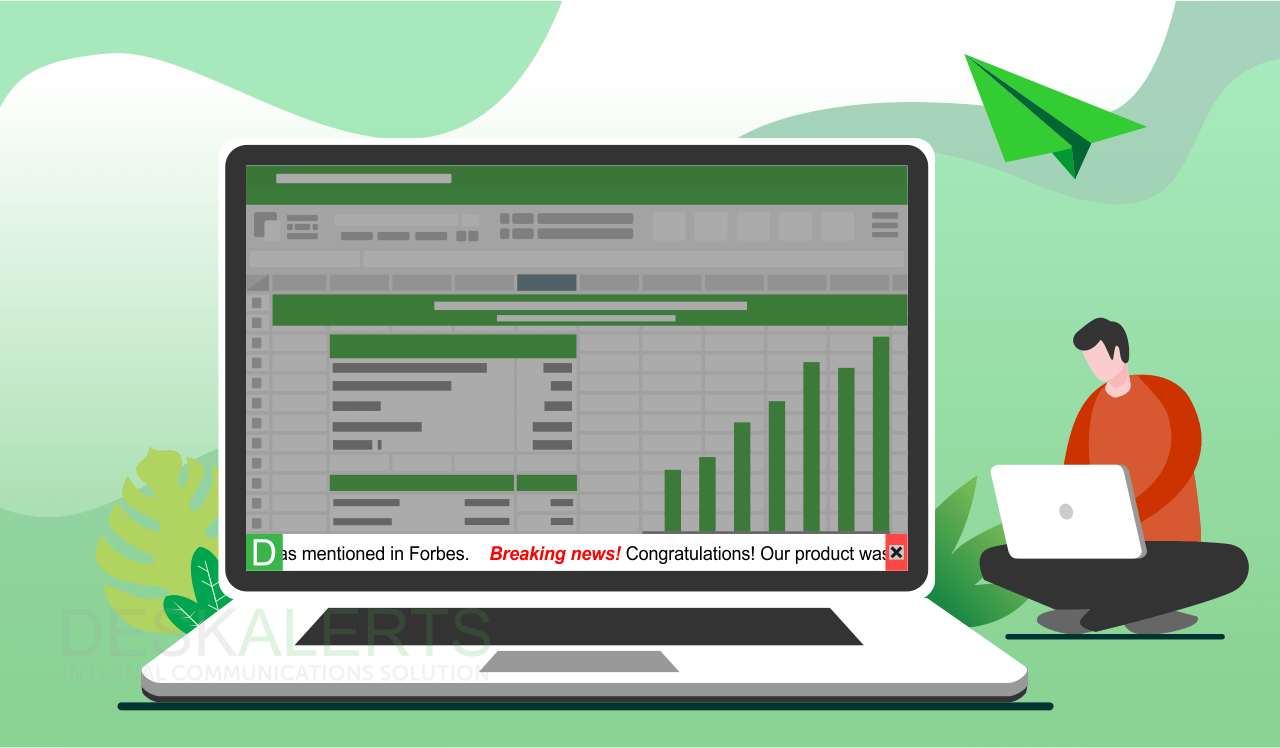
- A desktop agent on each computer. It runs on Windows 11 and macOS 12.6.1 or later. High-priority alerts appear on top of other open windows.
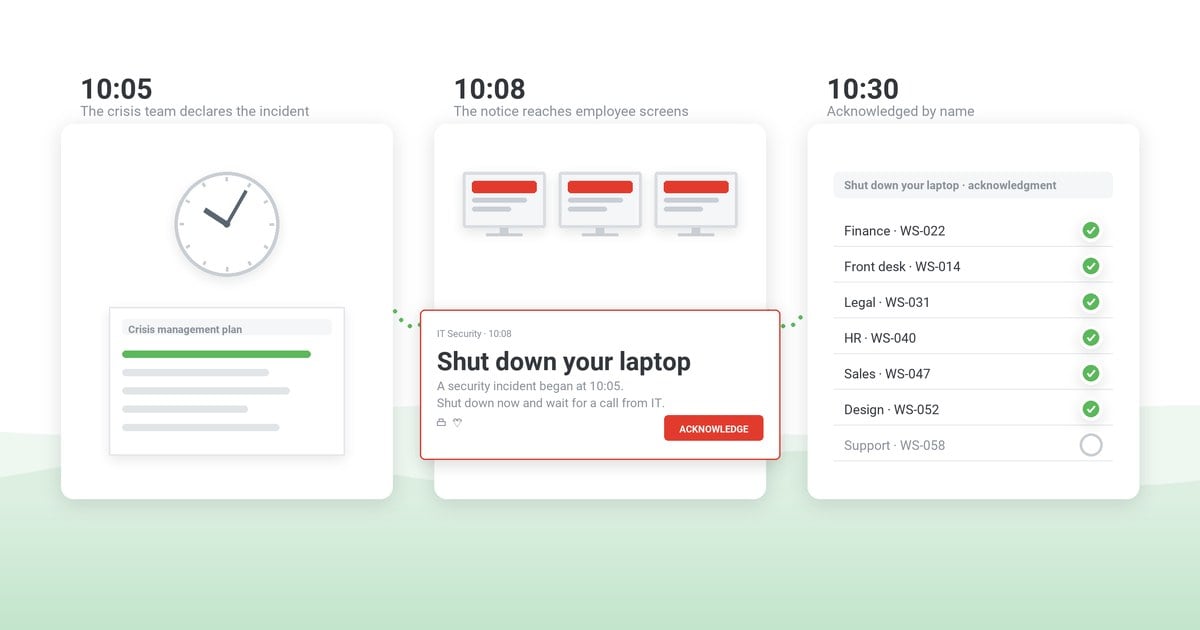
- Screen takeover for critical alerts. A full-screen pop-up variant; with acknowledgment enabled, the close button is disabled and the alert stays until the employee clicks Acknowledge.
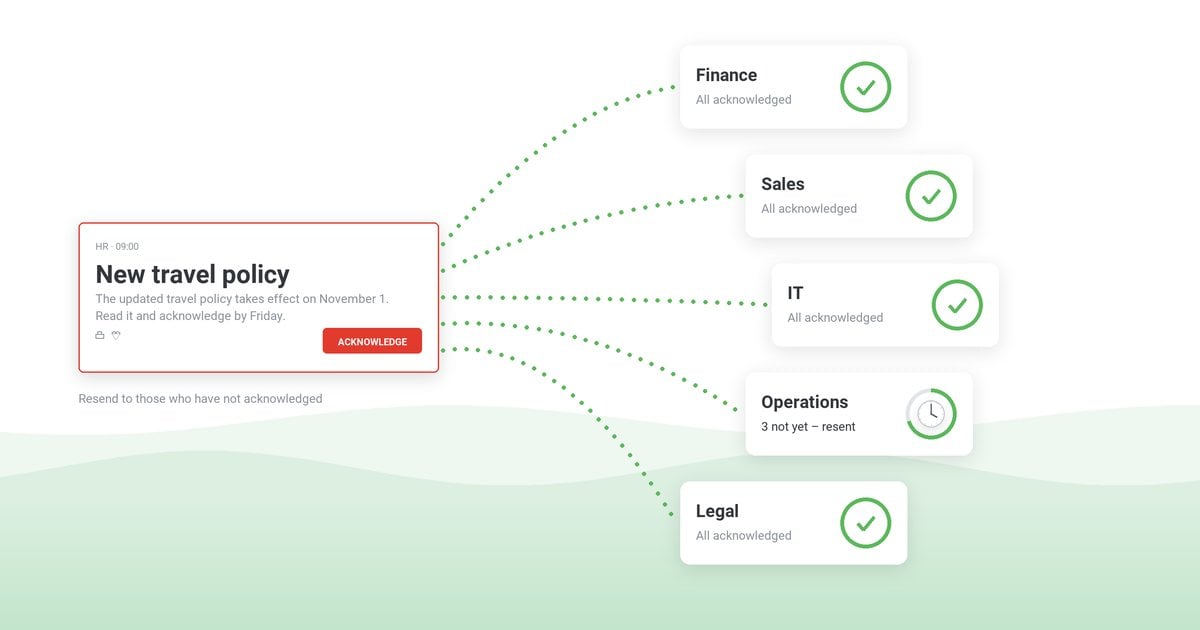
- Acknowledgment tracking per recipient. DeskAlerts records who received each alert and, with acknowledgment enabled, who confirmed it. The statistics export to CSV or XLSX, and a per-user report is also available. An alert can be resent to those who have not received or not acknowledged it.
- Targeting from Active Directory and Microsoft Entra ID. Users and groups are synchronized from Active Directory, including multiple Active Directory domains, or from Microsoft Entra ID. Recipients are chosen by group, organizational unit, IP range, or computer.
- Remote sessions, offline devices, other channels. DeskAlerts supports sessions in Microsoft Remote Desktop Services (RDS) and Azure Virtual Desktop. A Keep Active setting keeps attempting delivery for a set period to devices that were offline when the alert was sent. The alert also reaches the mobile app on Android and iOS as a push notification. Email and SMS (through an SMS gateway) carry a text version, and a Microsoft Teams module is available.
- Scheduled and recurring alerts. Alerts go out on demand, on a schedule, or on a daily, weekly, monthly, or custom recurrence. DeskAlerts runs in the cloud or on your own server.
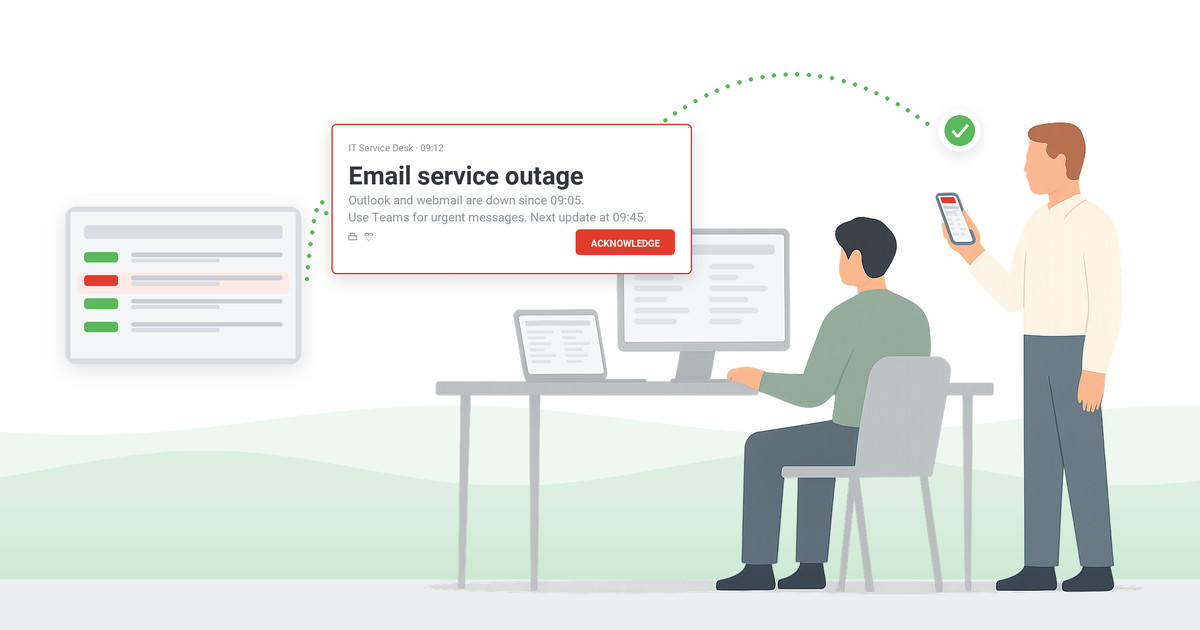
If your IT team sends outage, maintenance, or security notices more than occasionally, see how DeskAlerts works. The product pages for IT outage notifications and Active Directory integration cover outage notices and directory targeting in detail.
See one alert reach your Windows and Mac computers
A 30-minute demo: targeting by Active Directory group, the full-screen alert that stays until acknowledged, and a per-recipient report you can export.
Frequently asked questions
How do I send a pop-up message to all computers on a company network?
With the built-in tools, in two steps: the msg command shows a message to the user sessions on one computer, and PowerShell remoting runs it on a list of computers. For every computer at once, held on screen until acknowledged and recorded by name, use desktop alert software with an agent on each computer: DeskAlerts on Windows and macOS.
Does net send work in Windows 10 and 11?
No, net send does not work in Windows 10 or 11. It depended on the Windows Messenger service. According to Wikipedia, Microsoft disabled that service by default in Windows XP Service Pack 2, and Microsoft’s documentation lists it as not supported since Windows Vista. Its built-in successor, msg, messages the sessions on one computer.
What replaced net send?
The msg command is the built-in command used instead of net send. It sends a text message to user sessions on a Remote Desktop Session Host server or on one Windows 10 or 11 computer. Its parameters set the recipient, the display time, and an acknowledgment wait. It does not broadcast to a whole network.
How do I send a message to all users with msg?
The msg command reaches all users when the recipient is an asterisk, which stands for every user logged on to that computer. Optional parameters keep the message on screen for a set number of seconds and make the command wait for the user’s acknowledgment. Microsoft’s msg reference gives the exact syntax.
Can msg send a message to every computer in a domain?
The msg command cannot reach every computer in a domain with one command. It reaches the sessions on one computer, named in its server parameter, and administrators report that other workstations must first allow remote procedure calls, with mixed results. To cover several computers, you repeat the command or run it through PowerShell remoting with a list of computer names.
Can I send a pop-up to Mac computers?
A pop-up cannot be sent to Mac computers with msg or net send: both are Windows-only. Apple Remote Desktop can display a text message on the Macs it manages. For acknowledgment, reports and mixed fleets, alert software with a macOS agent does the job: DeskAlerts shows pop-ups on Windows 11 and macOS 12.6.1 or later; phones get a push notification.
How do I know who has read the message?
The msg command does not show who received or read a message: its wait parameter only makes the command wait for an acknowledgment, and nothing is recorded. Desktop alert software keeps a status per recipient. DeskAlerts records who received each alert and, with acknowledgment enabled, who confirmed it, exportable to CSV or XLSX.
What is the difference between desktop alerts and system pop-ups?
A system pop-up, such as msg, is a plain dialog on one computer with no record; a desktop alert from DeskAlerts is sent from a server to an agent on each computer. It is targeted by group, can take the full screen and require acknowledgment, reaches Mac and mobile devices, and reports who received and acknowledged it.
Is there a free way to send a pop-up to all computers?
The free option is msg run through PowerShell: msg ships with the Pro, Enterprise, Education and Server editions of Windows, by administrators’ reports, and PowerShell is part of Windows. Its limits: plain text, remoting on each computer, no record of who received it, nothing for computers that are off. Past a dozen machines, alert software does the job.
Microsoft, Windows, Windows Server, PowerShell, .NET, Active Directory, Microsoft Teams, Microsoft Entra, Azure, and other Microsoft product names are trademarks of the Microsoft group of companies; Mac and macOS are trademarks of Apple Inc., registered in the U.S. and other countries and regions; iOS is a trademark or registered trademark of Cisco in the U.S. and other countries and is used under license; Android is a trademark of Google LLC; Ansible is a registered trademark of Red Hat, Inc.; Wikipedia is a registered trademark of the Wikimedia Foundation, Inc.


 Steve Wilson: Oct 23, 2026, 9:00:00 AM