The lock screen ideas that work in a large organization pass one test: the message is useful in the few seconds between someone sitting down and signing in, and harmless if the visitor behind them reads it too. That makes the corporate lock screen right for the workaround to this morning’s outage, the sign-in change that starts on Monday, and the town hall at 15:00 in each office’s own time zone.
Lists of lock screen ideas tend to suggest quotes, birthdays, and sales figures. In a regulated company the last two are the risk: the contractor at the next desk, the visitor walking to a meeting room, and the patient waiting at a nurses’ station read them too. The ten ideas below were picked with that in mind, and so were the rules after them.
Table of Contents
1. What the lock screen does that email and Teams cannot
2. Ten lock screen message ideas for the moment people sign in
3. What must never go on a work lock screen
4. Tickets, votes, and attendance show whether a lock screen message worked
5. How to set one lock screen on every company computer
6. Who may publish to every screen
7. Fewer messages and firm end dates keep people reading
8. What lock screen software adds, and where it stops
9. Frequently asked questions
What the lock screen does that email and Teams cannot
Set centrally, the Windows lock screen puts the same message on every locked PC in a group. Its value is timing. It is on screen when people come back from a meeting, from lunch, or from the idle timeout – before they are back in Outlook and Teams, and before anyone raises a ticket. It also brings repetition without a third email, because the same line is back each time the PC locks during the day.
| The lock screen suits | The lock screen does not suit |
|---|
| A short, current message that changes what someone does after signing in | Anything that must be read now, such as an evacuation alert or a live security incident |
| A fact that will still be true tomorrow morning | Anything you must prove was read, such as a policy attestation for an audit |
| A line anyone near the desk may read | Anything confidential, personal, or not yet announced |
| A repeat of a message already sent another way | The only copy of an instruction – Mac users, staff without a PC, screen-reader users (the text is part of an image), and, depending on the setup, VDI users will not get it |
The screen is visible only while the PC is locked, so someone who works through the morning without a break first sees it at lunch. If Windows Hello is set to dismiss the lock screen automatically when it recognizes the user’s face, a lock screen message may get a glance rather than a read.
The reach that makes it useful is also the risk: a message sent to the wrong site, left up after the fix, or published by the wrong person is on thousands of screens before anyone notices. The setup behind it therefore has to support a separate version for each site, region, or language; an end date on every message; changes without an IT ticket; limits on who may publish to whom; approval before anything goes to all staff; and a record of who sent what.
Ten lock screen message ideas for the moment people sign in
Each idea ends with a sample line.
1. The workaround for an outage people are about to hit
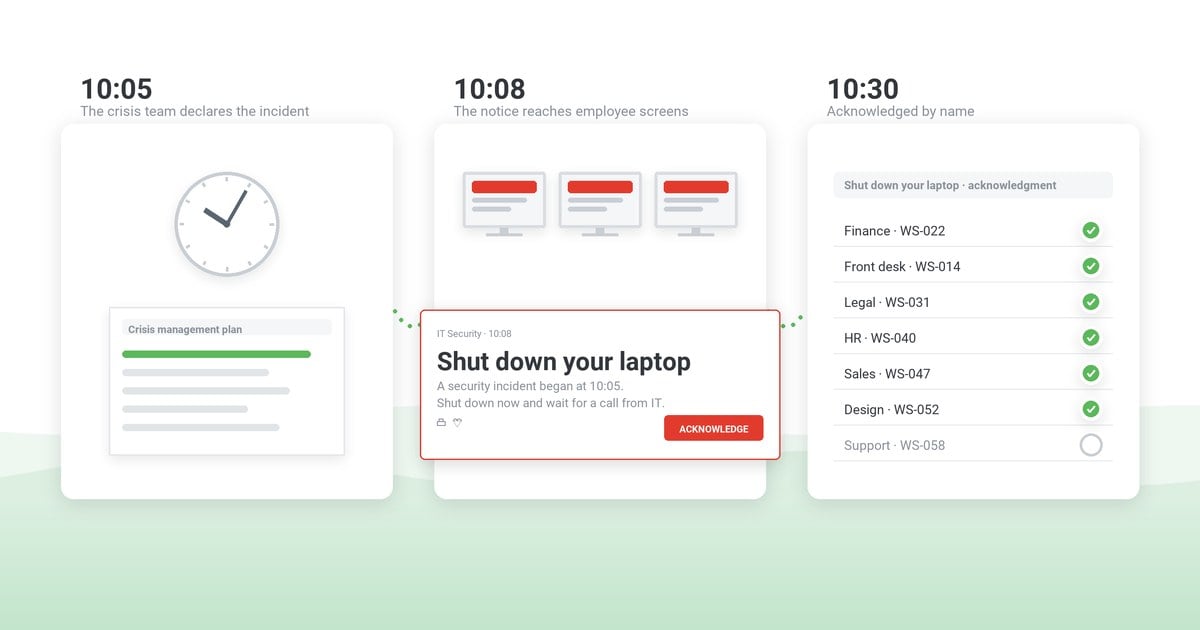
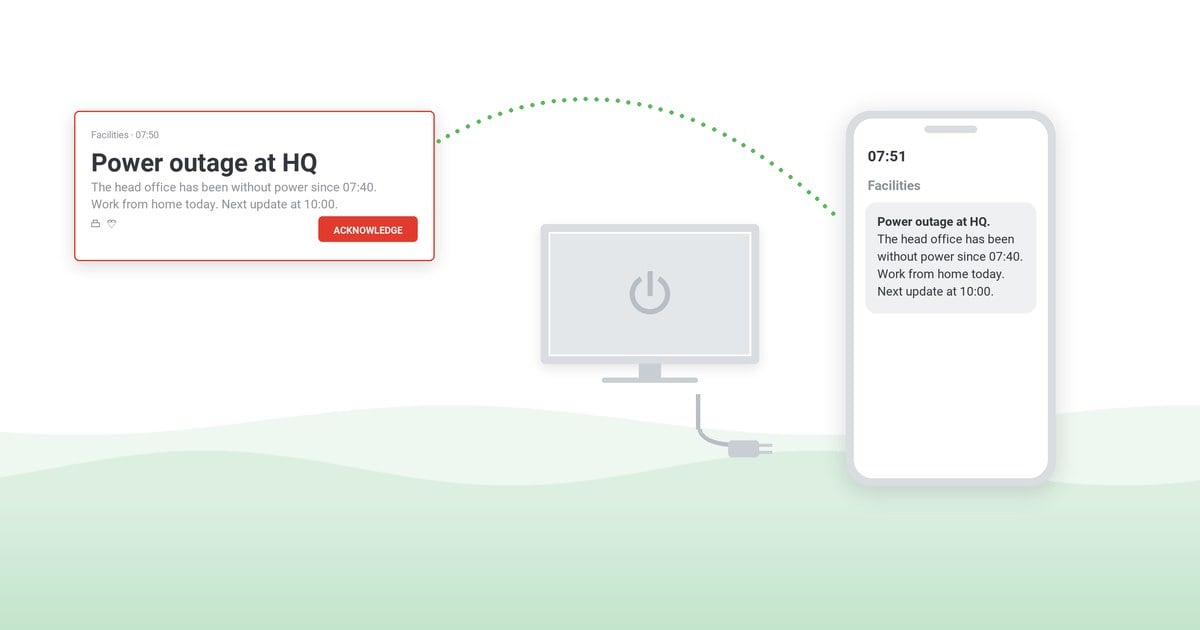
In a Microsoft 365 outage, the service desk’s real problem is the sign-in wave, when a whole floor finds the same failure and raises the same ticket. The locked PCs at the affected sites can show the workaround and promise a time for the next update, so people read it before they call. Plan for it to stay up for a few hours at most, and replace it when the status changes.
This helps when a service fails, not when the network does, because a PC that is offline will not get the new screen.
On screen: Email delays since 08:20 – messages arrive up to 40 minutes late. No need to raise a ticket. Next update at 10:00 CET on the IT status page.
2. A sign-in change, announced where a phishing email cannot reach
Any change to the sign-in method – a move from SMS codes to passkeys in Microsoft Authenticator, a new VPN client – invites look-alike instructions from attackers in the same week. Provided the image source and publishing rights are locked down, a phishing email cannot put text on the lock screen of a managed PC, which makes it a credible place to announce the change and to say what IT will never ask for. The full explanation belongs in a cybersecurity awareness email; the screen carries the one rule people must remember.
On screen: From Monday 2 November, you sign in with a passkey in Microsoft Authenticator. IT will never call or email you to ask for a code or to approve a sign-in.
3. A phishing campaign that is landing today
When fake “payroll update” emails are arriving, the security team needs people warned before they open their mail and a record of who was warned. The lock screen can do the first but not the second. Send the warning as a desktop alert that people must acknowledge, so the acknowledgments are the record, and keep a short version on screen until the campaign is over for people coming back from meetings.
On screen: Fake “payroll update” emails are circulating today. Do not open the attachment – use the Report button in Outlook.
4. The clear-screen rule, read at the right moment
The lock screen is the one place where a reminder to lock the screen arrives on cue. If the PC locked itself on the idle timeout, it stood open until then, and the line can say so – with your own timeout in it. One line there backs up the clean desk and clear screen policy you already have.
On screen: Did this screen lock itself? Then it was open to anyone for up to 10 minutes. Windows key + L locks it in a second.
5. A policy on its effective date
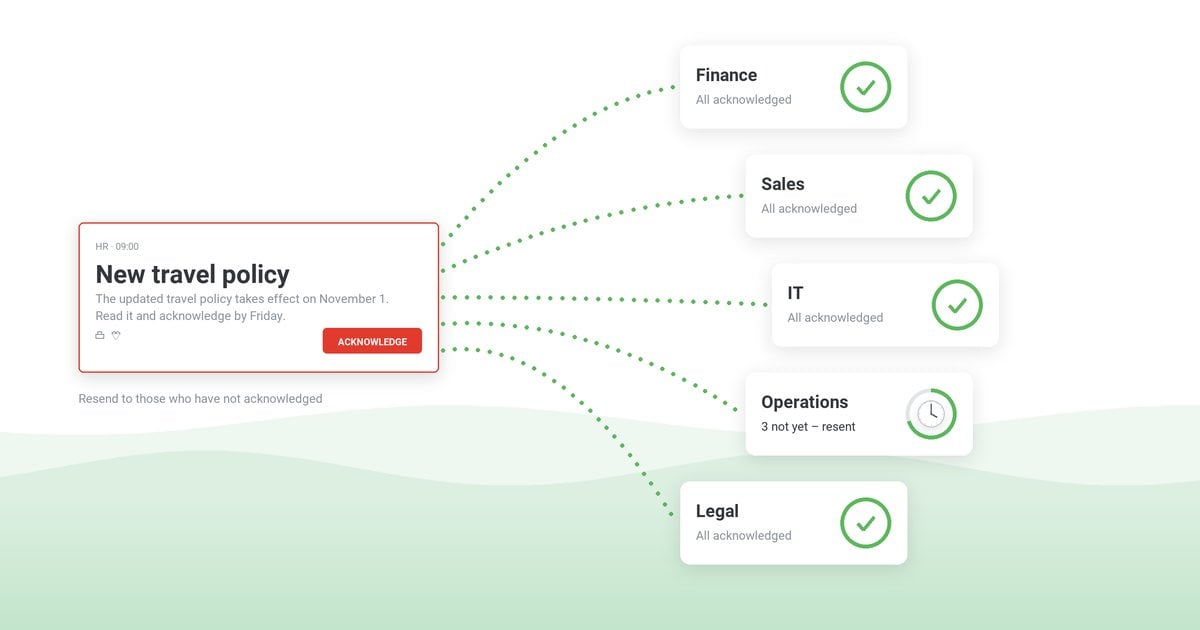
Policies are broken on the effective date, not on the day of the announcement. The travel rule that changes on 1 November is broken on 2 November by people who read the email in October. Run the message from a week before the date to a week after it, and say where the full text is.
On screen: From 1 November, book all business travel through the new travel portal. The two-minute summary is on the intranet under Policies.
6. A safety change at one site
When the fire assembly point for Building C moves, every PC in Building C should say so for a month, and no PC anywhere else should. Target it by organizational unit, group, or the site’s IP range. IP-range targeting follows the network, so staff on VPN and contractors on their own laptops miss it; the door signs and the site induction still carry the change. On shared PCs that lock between shifts, such as a dispatch desk, the incoming shift sees the lock screen before anything else. If the outgoing shift signs out instead of locking, or badge-tap sign-on replaces the Windows sign-in, as on many clinical workstations, test which image the next person sees before counting on it. Control-room screens set never to lock will not show it at all. More wording for site rules is in safety messages to employees.
On screen: Building C: from 3 November the fire assembly point is Parking Lot 2, not the front lawn.
7. A town hall, in each office’s own time
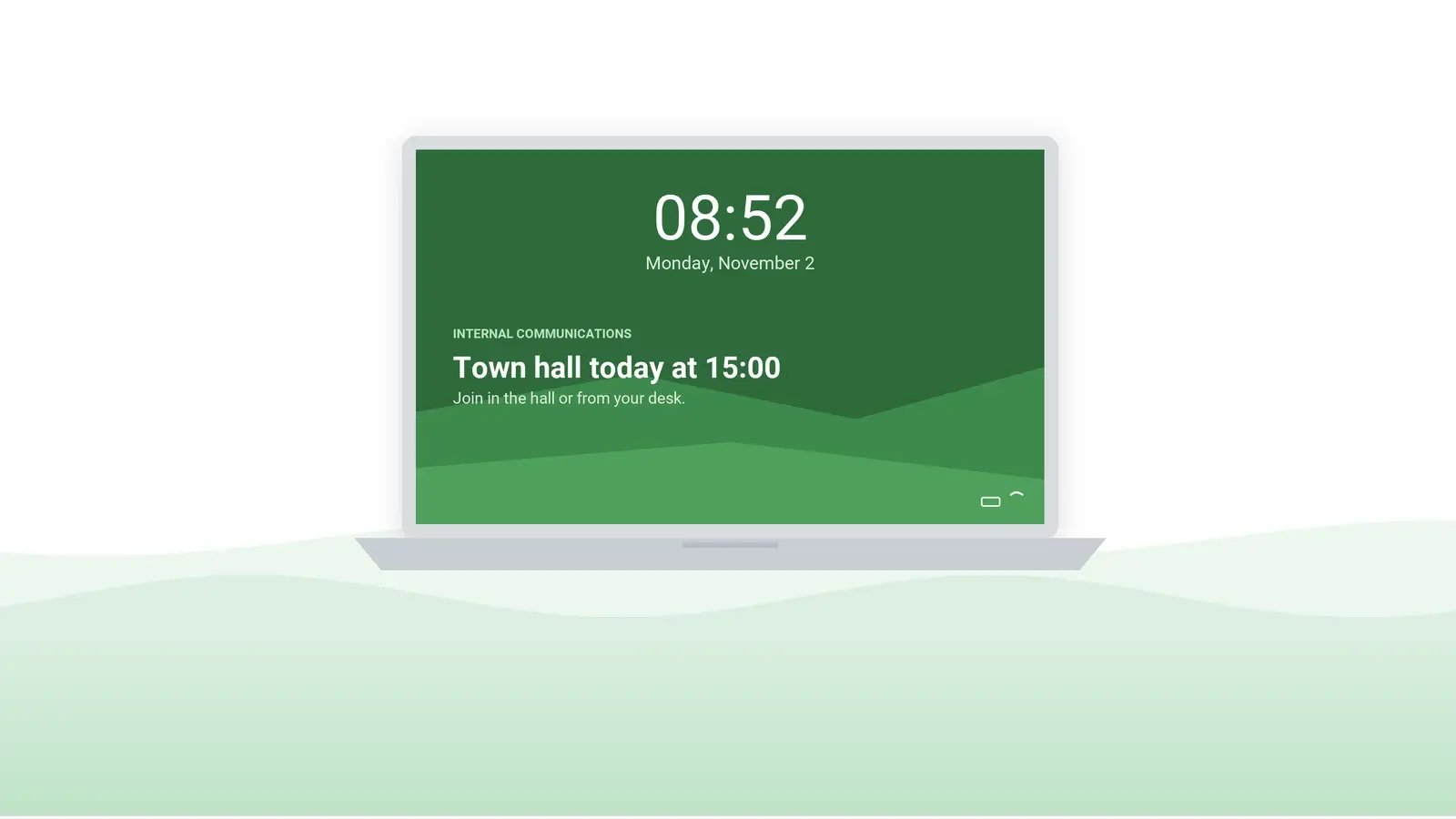
“Town hall at 15:00” is right in Frankfurt and wrong in Chicago, so each region gets its own version with the local time, ending when the meeting starts. The trap is daylight saving time, because Europe and the US switch on different dates. In 2026, from 8 to 28 March and from 25 to 31 October, 15:00 in Frankfurt is 09:00 in Chicago, not 08:00, and from 29 March to 24 October the Frankfurt label is CEST, not CET. A regional line written once and reused is wrong in those weeks unless someone checks it.
On screen: Town hall Thursday 29 October at 15:00 CET – join in the main hall or from your desk on Teams.
8. A works council vote or consultation deadline
Works council elections, union consultations, and share-plan windows have deadlines fixed by statute, agreement, or the plan rules. The formal notice still goes where the rules require it, and the election board agrees the wording of the reminder. The screen carries only the reminder, for everyone in scope, until the deadline and not a minute after.
On screen: Works council election: Thursday 12 November, 08:00–17:00, in the canteen. Need a postal vote? Ask the election board by Thursday 5 November.
9. A benefits or payroll date – never an amount
HR’s best lock screen messages are dates that everyone shares, such as the close of open enrollment or a payroll cutoff moved by a public holiday. Keep the message identical for the whole audience; once it would differ from person to person, it belongs in a channel only that person sees.
On screen: Benefits enrollment closes Friday 20 November. Changes after that wait until next year’s window.
10. A go-live countdown, then the team that delivered it
A system go-live changes what people do on a specific morning, so a daily countdown – the days left, what changes for the reader, where the guide is – is one of the few messages worth replacing every morning. After go-live the same slot can thank the project team, as a team rather than a list of named individuals, and with their agreement. For recognition messages, see motivational messages for employees.
On screen: The new ERP goes live in 4 days. From Monday, expense claims move to the new portal – the five-minute guide is on the intranet.
What must never go on a work lock screen
Publishing confidential content to a locked screen undoes the clean desk policy: shoulder surfing needs no shoulder when the desk is empty. NIST’s control for device locks asks that the lock conceal what was on the display “with a publicly viewable image” (SP 800-53 Rev. 5, control AC-11(1)). Treat the lock screen as a poster in reception, and keep these off it:
- Unannounced deals, restructuring, or site closures, including project code names that insiders can decode. For a listed company these can be inside information; the legal team or investor relations decides when they may appear anywhere.
- Financial results, sales figures, and KPIs that are not cleared for everyone who walks past the desk.
- Pay, bonuses, and salary bands, even as averages.
- Anything about a named person: health, absence, performance, disciplinary matters, or overdue training. Birthdays and work anniversaries combine a name with personal data; leave them to channels the person controls.
- Security details: which systems an incident has affected and why, incident bridge dial-in numbers, Wi-Fi keys, and door codes.
- Customer or patient information of any kind.
Targeting can disclose as much as content. “Mandatory training overdue – complete it by Friday” is harmless on every screen in a department and a disclosure on the screens of only the people who are overdue, because everyone who walks past now knows who they are. Send the reminder to the whole group, and the personal version by email or through the training system.
Tickets, votes, and attendance show whether a lock screen message worked
There is no view count to report, so do not promise management one. Measure the behavior the message was meant to change, against a comparable period without it.
| Message | What to compare |
|---|
| Outage workaround | Duplicate tickets per incident, against the last similar outage |
| Policy effective date | Exceptions and out-of-policy cases in the first two weeks, against the previous policy change |
| Enrollment or vote deadline | Completion by the deadline, against the previous cycle |
| Phishing warning | Reports against clicks for that campaign |
| Town hall | Attendance by region, against the last town hall |
A good number may have other causes – a quieter month, a second email – so present it as an indication and name the comparison period.
How to set one lock screen on every company computer
To put one lock screen on every company computer, use Windows’ own policies or a publishing tool: they are the two routes that scale.
Group Policy (the setting “Force a specific default lock screen and logon image”) and Intune can force one lock screen image on managed PCs. Microsoft supports both built-in settings on Windows Enterprise and Education editions; on Windows Pro, the Intune setting (the Personalization CSP) works only in shared-PC configurations. Each policy sets one image with no start or end date, so a version per site means a policy per site, and every change – a new campaign, an outage notice, a corrected typo – is a request to IT.
Lock screen software moves publishing to the communications or HR team: each message gets its own audience and its own dates and is replaced without a ticket to IT. IT packages the tool’s agent, rolls it out, and keeps it updated like any other agent on the build.
Who may publish to every screen
Moving the lock screen from Group Policy to a publishing tool shifts the risk as well. The speed that makes idea 1 work also puts a typo or a premature announcement in front of the whole company. Settle three things before the first message goes out.
- Who publishes to whom. HR to all staff, each site manager to their own site, and IT to the affected sites during outages. Set each limit in the publisher rights themselves.
- What needs a second pair of eyes. Anything for everyone, anything about money or results, and anything published during an incident. For incidents, put the approver on the on-call rota, or the review delays the very message it was meant to check.
- Whether a lock screen counts as a change. Agree with the change advisory board, before the first change freeze, whether publishing a lock screen needs a change record. The agent rollout clearly does; content is a policy decision.
Fewer messages and firm end dates keep people reading
Rotation dilutes. With three messages assigned to the same people, each glance shows only one of them. Keep it to one or two per audience at a time, and when something matters this week, let it run alone.
Every item gets an end date unless it is permanent by design, like a site’s emergency number. A notice for a meeting that ended yesterday tells people the channel is not maintained, and they stop reading it. If the screensaver carries the same campaign, plan both in one calendar; the post on corporate screensaver examples covers the rotation there.
What lock screen software adds, and where it stops
Idea 1 is the hardest test of either route. DeskAlerts is a lock screen tool on the publishing route, and the requirements in the first section are the fair way to judge it.
DeskAlerts publishes lock screens from the same browser-based console as desktop alerts and targets them to Active Directory groups, organizational units, IP ranges, or individual computers, so Building C alone gets its new assembly point. Each lock screen starts immediately or on a scheduled date and runs continuously or until an end date. When the status changes, the publisher sends the new version and stops the old one. The corporate lock screen software page lists the module’s features.
In DeskAlerts, a publisher policy sets the list of recipients each publisher can reach. An optional approval workflow holds other publishers’ content as Pending Approval until someone with the approval role approves or declines it. For the record of who sent what, the Users Action Log lists each publisher’s logins and sends with timestamps and exports to CSV or Excel.
The Windows agent goes out through SCCM, Intune, or Group Policy with its lock screen service enabled. It can be installed with the wallpaper, lock screen, and screensaver modules turned off on machines that should show none of them, such as a reception kiosk.
The DeskAlerts lock screen module runs on Windows only, adds no read record, and rotates every minute when several lock screens are assigned to one person. On Macs, the message can go out as corporate wallpaper, which also runs on macOS; staff without a PC need another channel, such as email, SMS, or Teams from the same console. Where one permanent image is all the company needs, the Windows policies already do the job.
When a message needs proof person by person, send it as a desktop alert that the recipient can close only by clicking Acknowledge. The Users Report shows per person what was received, not received, or acknowledged, and the alert statistics export to CSV or XLSX for the auditor. Even that records the click, not understanding.
Begin with the outage workaround and one policy date, give one person the keys, and review once a month what is running, who published it, and when it ends.
See one lock screen message set up for one site, with an end date
A 30-minute demo: targeting by group or site, a start and end date, and the publisher limits behind them.
Frequently asked questions
Can you put a message on your lock screen?
Yes. Computer lock screens on managed Windows PCs can show a company message, set centrally, the same one on every locked PC in a group.
What software can I use to manage lock screens in the company?
Windows’ own Group Policy and Intune settings set one fixed image per policy, and IT makes every change. Lock screen software such as DeskAlerts adds targeting by audience, start and end dates and publisher permissions for Windows PCs.
What do you write on a lock screen message?
One fact, one action, and one date or time with its time zone – for example, “The main elevators in Tower B are out of service until 14:00 CET. Use the Tower A elevators or the east stairs.”

 Steve Wilson: Oct 23, 2026, 9:00:00 AM