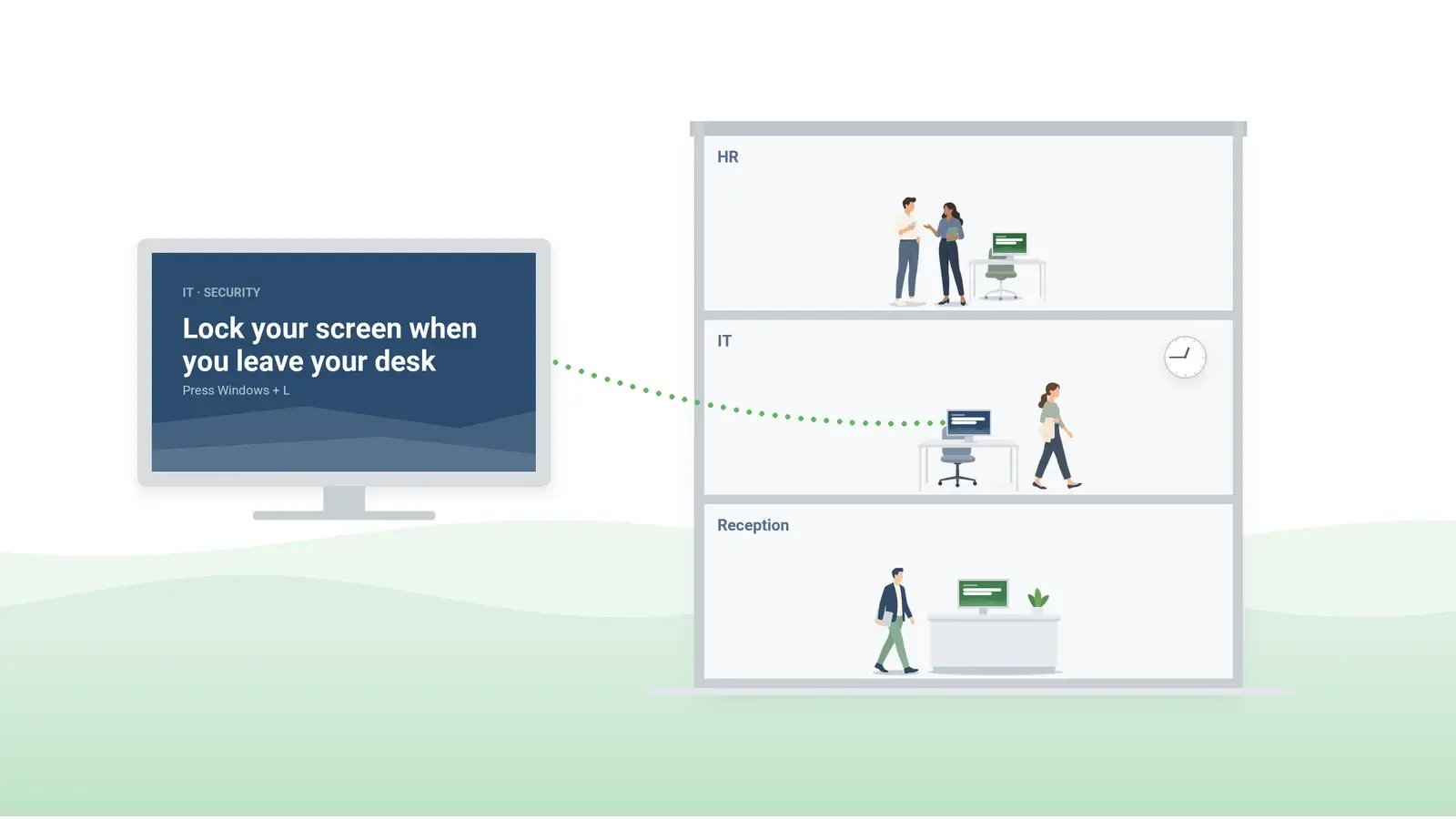
The enrollment deadline that three emails failed to get across, the evacuation route that changed while half the floor was on vacation, the campaign that faded a week after the launch email: these are the messages a corporate screensaver is for. Corporate screensaver software carries a rotation of company slides on idle work computers, published and targeted centrally – by site, building, or department, with dates – rather than chosen by each user.
Before a slide goes in, ask two questions. Does it stay true for as long as it runs? Is it acceptable if someone misses it today or never confirms reading it? If both answers are yes, it belongs on the screensaver; if not, it goes out as an alert, and a screensaver slide repeats it. For messages that belong on the desktop behind open applications or at every sign-in, see corporate wallpaper and the corporate lock screen.
Table of Contents
1. An idle screen has an audience of its own
2. Corporate screensaver examples by department
3. Screensaver message ideas for your workplace
4. Design the slide to be read from two desks away
5. One calendar runs the rotation, and the departments fill it
6. Screensaver software keeps the calendar that the Group Policy settings cannot
7. Frequently asked questions
An idle screen has an audience of its own
Corporate screensavers are read by whoever happens to be near a PC that nobody is using – the empty desks at lunch, the shared PC in a control room that passes from one shift to the next, the counter PC a customer faces while the clerk is away, the training-room row nobody signed out of. The people who never see one are those working at their keyboards all shift, the staff who have no PC at all – on a ward, in a loading bay, on a production line – and, on virtual desktops and thin clients, anyone whose session host is set to show nothing. Test what locked, shared, and virtual seats actually show before counting them.
That makes the audience a place rather than a person, with two consequences. A slide that is right for the finance floor is a disclosure in a waiting room, so every slide is written as if a stranger will read it; a name with a photograph on a slide is personal data on a public screen. And a single break away from the desk shows a handful of slides at most, so count slides per computer, not per department: an office employee already sees the building's safety slide, the campaign, HR's deadline, and IT's notice before any executive or recognition slide gets a turn.
In an incident, the same two-question test applies, only faster. The screensaver keeps in view for days what people need to look up: one slide with the hotline number and the incident status page, and slides of their own for the work-from-home rule and the map of the closed area. The instruction everyone must act on now goes out from an emergency notification system for business, as a desktop alert. Incident slides stay off counter and waiting-room screens and come down the day the incident closes, before they contradict the all-clear.
Corporate screensaver examples by department
Corporate screensaver messaging works when each department below owns its slides and one person – usually in internal communications – decides which of them get a place in the rotation in a given week.
Internal communications
The quarter's campaign rarely works as one image for every site. The communications team publishes one company screensaver per site or region, with the site lead's name and the local time of the town hall, in the site's language, and changes it at each stage of the campaign.
Human resources
The payroll cutoff, the benefits enrollment window, the annual policy attestation, and the mandatory training deadline are the dates people miss in email. HR runs each slide until its deadline. The attestation slide carries the deadline and the system's name, and the completion count comes from that system's own report.
IT
Keep IT slides free of sign-in requests, web addresses, and QR codes, and say so on the security slides, so a request for credentials "from IT" is easy to recognize as fake. The rotation also carries what IT repeats all year (the weekend maintenance window, the password or multifactor authentication rule that changes next month, the help desk number). The maintenance slide runs at affected sites the week before the window, and the security slide for the month of the change.
Safety and compliance
Each computer's rotation permanently includes the evacuation map and assembly point for its building, copied from the current posted plan and replaced the day that plan is revised. The safety manager rotates the monthly reminders, such as ladder checks, spill response, and safe lifting.
Property and facilities
When construction closes the east stairwell for three weeks, the alternate route belongs on the screens of the people who use that stairwell, and it leaves the rotation on the day the stairwell reopens. Facilities uses the same pattern for a closed entrance, the visitor escort rule, and the reminder not to hold a secure door for someone without a badge.
Executive office and recognition
In a publicly traded company, the CEO's message on the quarterly results waits until the release is out, with the timing confirmed by investor relations. A reorganization or a branch closure waits the same way, until any required consultation with employee representatives is complete and the people affected have been told directly. Welcomes to new hires and thank-you messages to a team carry names and photographs; they follow your privacy notice, your HR policy and, where the law requires it, the consent of the people shown. Where a works council exists, it is easier to agree once on what the rotation may show about named people than to argue over each slide.
Screensaver message ideas for your workplace
Below are ready-to-use lines and ideas for a work screensaver, grouped by theme. Take the ones that fit your organization and add the date or the place. Most are written for staff-only screens.
Safety and emergency
- The emergency numbers for the site.
- "Fire drill on [date] at [time] – follow the fire plan for your area and report to [assembly point or warden]."
- "AED and first-aid kit: [location]. First-aid responders on this floor: [names]."
- Who decides on a site closure in severe weather, and where the decision is announced.
- How to report an injury or an unsafe condition, and to whom.
- "Business-continuity test on [date]. If your team relocates, your manager has the instructions."
IT and security
- "Asked to change a supplier's bank details? Call the supplier at the number you already have, not the one in the email."
- "This PC is shared: sign out before you leave it, or the next person works in your session."
- "[New system] replaces [old system] on [date]. The guide is on the intranet under [section]."
- "Change freeze from [date] to [date]. New access requests will be processed starting [date]."
- "Laptop lost or stolen? Call [number] as soon as you notice, wherever you are."
- "Restart your computer by [date] so the security update can finish installing."
HR and benefits
- "Employee survey closes [date] – [number] minutes, in [system]."
- "Employee assistance line: [number], [hours]. Confidential – [provider's confidentiality wording]."
- "Self-reviews due [date]; review conversations [date range]."
- A policy change in one sentence: the one thing that changes for the reader, and where the full text is.
- "Complete the policy attestation in [system] by [date]. It takes [number] minutes."
Recognition and people
- "Ten years at [company] in [month]: [names] – thank you."
- A customer's thank-you note to a named team, shared with the customer's permission.
- A site milestone: an audit passed, a certification renewed, a hazard fixed after a staff report.
- One colleague's thanks to another, in their own words.
- "[Team] closed [project] two weeks early. Ask them how at the [date] town hall."
Company news and events
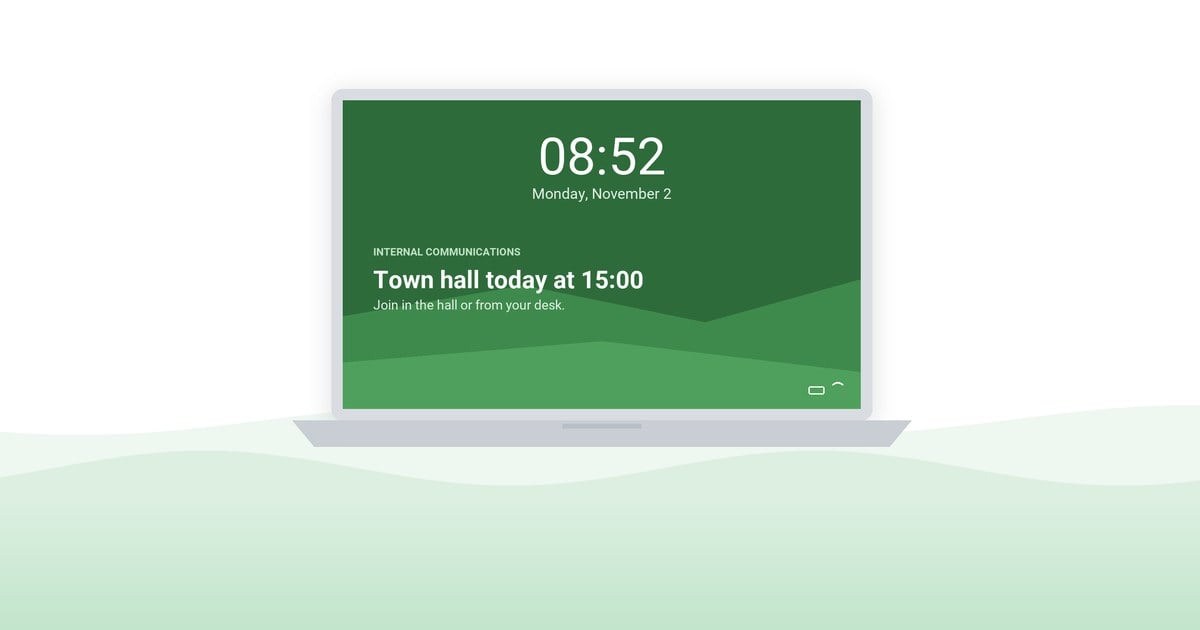
- "Town hall on [date] at [time]: join in [room] or from your desk on [channel]."
- "[Site or team] went live on [system] on [date]. Questions go to [team] at [extension]."
- "From [date], [team] works at [address]. Directions are in Friday's newsletter."
- The results of the employee survey and the three changes that follow from it.
The same ideas work on the lock screen, which suits the messages that should come first. The lock screen ideas post has its own list. For recognition and morale, the post on motivational messages for employees has the wording.
Design the slide to be read from two desks away
Use one color for safety, one for IT, one for HR, and one for company news, and keep them the same all year: the color says what kind of message it is before the words do. Keep red and the emergency styling out of routine slides, because a fire-drill reminder that looks like an emergency makes the real alert less distinct. Pair each color with a short label, since some readers cannot tell colors apart. One template per theme color, with fixed places for the heading and the date, lets each department produce its own slides without a designer – design capacity is the hidden cost of a rotation.
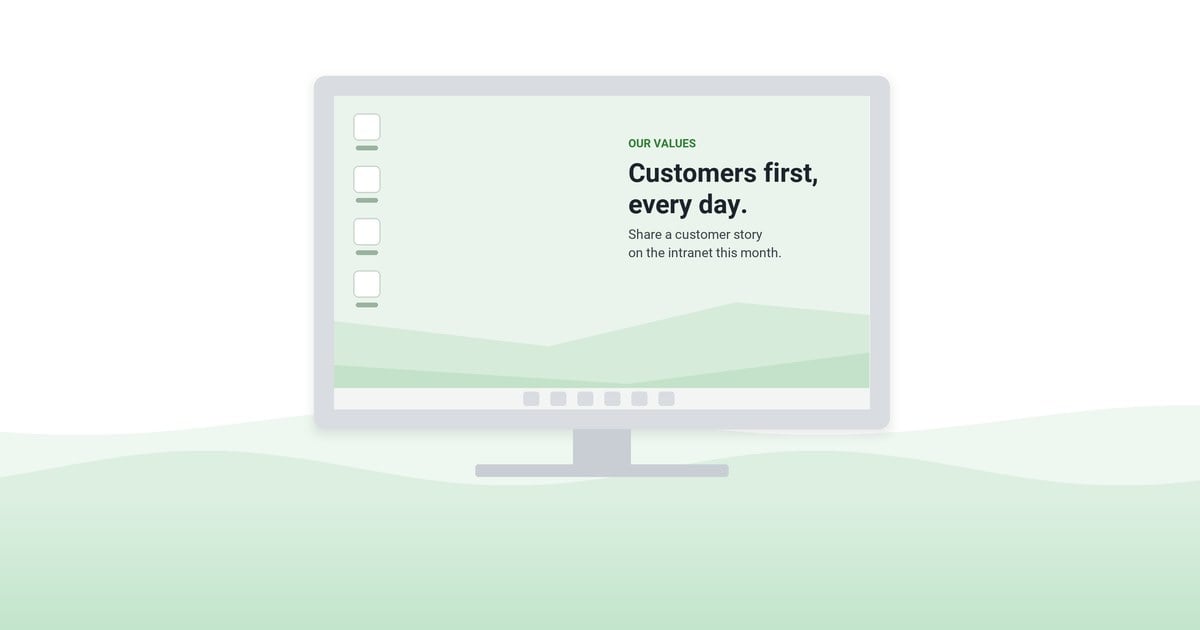
A slide stays up for weeks, so its heading should carry the action and the date. "Expense reports due October 25" works on every day it runs; "Important reminder" works on none.
Terminals at service counters and in branch lobbies are often older than the office monitors and run a different resolution. Export each slide at the resolution of the largest display in use, keep the date and the action inside the area every screen shows, and check the slide on the oldest counter terminal before it goes to everyone.
Every slide then passes one test before it is published: read from two desks away, the date and the action must be legible, and if they are not, the text is cut until they are.
One calendar runs the rotation, and the departments fill it
The person who decides the rotation keeps its calendar: which slide runs from which date and for which sites. A slide changes when its message does. Two kinds of slide are exceptions: permanent ones and deadline slides, which end on their date.
The departments publish their own slides on dates booked in that calendar, each within its own audience, so HR does not wait for IT to post a deadline. Before anything bound for a counter PC or a waiting area goes live, the person who approves customer notices reviews it – in a bank, usually compliance, since a rate or a product shown to customers can count as advertising.
To show management whether the rotation works, the calendar owner tests it on a message that harms no one if missed: run the employee-survey slide at half of a set of comparable sites and compare response rates by site in the same cycle. Comparing one cycle with the last is weaker, because reminders, managers, and the deadline itself change in between, and withholding a benefits or attestation reminder to build a control group is hard to defend to HR. For a recall check – whether slides are read at all – ask a dozen people at one of the target sites, away from their screens, which deadline the slide announced.
Windows covers part of this by itself. Group Policy's Personalization settings can switch the screensaver on for every user account in their scope, force one .scr file, set the timeout, and require a password on resume. What they cannot keep is the calendar: a policy scope gets a single screensaver, a new slide means IT replacing the file, and a slide stays until someone removes it. For a permanent set – the evacuation map and the emergency numbers – Group Policy is enough.
Screensaver software keeps the calendar that the Group Policy settings cannot
Take one shared PC in the east wing in a given week. Its rotation should carry the wing's evacuation map, the benefits deadline that falls on Friday, IT's restart notice for the two affected sites, and the regional town hall in local time – four slides from four publishers, three with different end dates, and nothing a visitor should not read. That week is what corporate screensaver software is for. Here is how DeskAlerts carries it, and where another channel has to take over.
Each slide is an image, a short video, or an HTML page (the corporate screensaver software page lists the formats), targeted to an Active Directory group, an organizational unit, an IP range, or a single computer, so the east wing's map reaches only the east wing. Every slide carries a start date and, unless it is permanent, an end date set at publication; the benefits slide leaves the rotation on Friday.
In DeskAlerts, idle timing is set centrally: the screensaver timeout defaults to 300 seconds, and several slides on one computer change every 60 seconds by default, so a ten-minute break shows at most five slides. Check the timeout against the idle-lock and display-off policies before planning the rotation.
Each of the four publishers reaches only the recipients its publisher policy allows – IT only the two sites it supports. Where slides are bound for a public screen or carry regulated content, switch on the approval step: no slide goes out until a publisher holding the approval role approves it, and meanwhile it shows as Pending Approval. The Users Action Log answers who put a slide on the counter PCs, and when: it timestamps every publisher's sends and exports them for review.
The calendar owner's recall check needs no second tool: the DeskAlerts console behind the screensaver sends a one-question survey to the same audience.
DeskAlerts shows screensavers on Windows PCs only; nothing in the console says whether a particular person looked at a slide. IT installs and maintains the agent on every PC in the rotation, the license is sized by recipients, and communications carries the publisher accounts and the calendar owner's time. Ward, loading-bay, and production-line staff get the message by SMS, in the mobile app, or on digital signage, published alongside the slides.
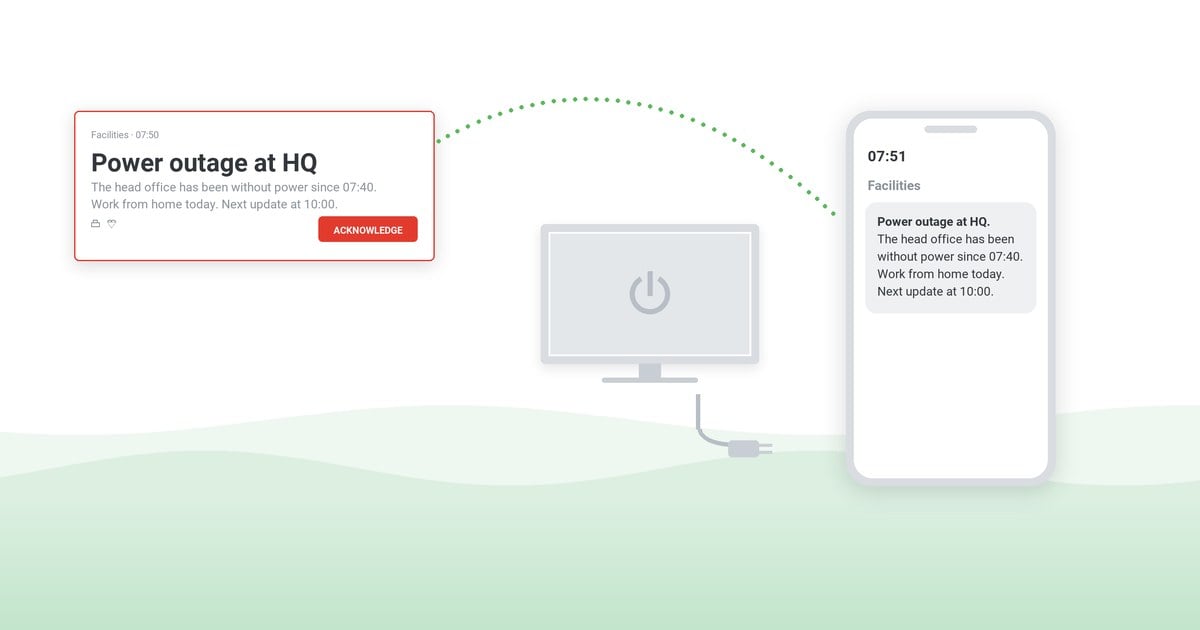
What fails the two-question test moves to a desktop alert sent with acknowledgment required; acknowledgments record clicks, so understanding needs a quiz with correct answers. The alert has no working close button until Acknowledge is clicked, and for each recipient the Users Report shows received, acknowledged, or not received; the statistics download as CSV or XLSX.
The first month's rotation per site is three slides: the building's safety slide; the current campaign; and the nearest deadline. A theme is added when a department asks for it and has a template for it.
See a week's screensaver rotation set up, slide by slide
A 30-minute demo of a week like the east wing's.
Frequently asked questions
What should a corporate screensaver say?
A corporate screensaver should say one thing per slide – a deadline, a safety rule, a welcome, or a thank-you – with the action or the fact, the date or the place it applies to, and who it concerns. Anything that needs a longer explanation belongs in the intranet article or the email the slide points to.
How often should a corporate screensaver change?
A corporate screensaver should change about every two weeks for campaign and news slides.
Are screensavers an efficient communication tool?
Screensavers are efficient for reinforcement: a message people have already received by email or in a meeting stays in view on idle screens for weeks without adding to the inbox. An announcement that must stay in view while people work goes to a scrolling desktop ticker instead.
What is an example of a corporate screensaver?
A typical corporate screensaver is a full-screen slide headed "Open enrollment closes November 15," with one line on where to enroll, shown on the idle computers of eligible staff for the three weeks enrollment is open.


 Steve Wilson: Oct 23, 2026, 9:00:00 AM