IT outages, emergencies, policy changes and HR announcements all have to reach the right employees on time, and some need a record of who received and confirmed them. An employee notification process sets the rules for this in advance, so senders do not have to work them out under time pressure. This guide explains how to build that process, with five common use cases, what to automate and a three-stage rollout. If you are choosing software, the employee notification system page covers what to look for.
Table of Contents
1. What an employee notification process includes
2. Five use cases for employee notifications
3. Desktop alerts and employee engagement
4. How to automate employee notifications
5. Rolling out the process in three stages
6. Running the process in employee notification software
7. Where to start
8. Frequently asked questions
What an employee notification process includes
Without agreed rules, each department keeps its own distribution lists, senders pick formats case by case, and after an incident it is hard to say who received the urgent instruction. An employee notification process settles six questions before the first alert goes out:
- Who sends. Named owners for each message type, an approval step for routine content, and a short list of people authorized to send emergency alerts.
- Who receives. Audience groups built from the directory – departments, sites, shifts and roles – so that each alert reaches the people it concerns.
- What format. The level of interruption each message type justifies, from a scrolling ticker to a full-screen alert.
- Which channels. Computers for desk-based employees; the mobile app, SMS or email for frontline and traveling staff.
- What counts as confirmation. Which messages require acknowledgment, and where the record of receipt and acknowledgment is kept.
- What happens next. When and how the sender follows up with employees who have not received or acknowledged the alert.
Email, chat and the intranet handle messages that can wait. They are weaker at the two things this process depends on: interrupting the employee when the matter is urgent, and recording who received and who acknowledged the message. Dedicated notification software closes that gap. This guide covers the process first, and section 6 shows how it runs in software.
A notification matrix
The six answers fit in one table per organization. A typical starting point:
| Message type | Format | Channels | Acknowledgment | Follow-up |
|---|
| Emergency: evacuation, lockdown, severe weather | Full-screen alert; emergency alert on digital signage | Computers, mobile app, SMS | Required | Resend to those who have not acknowledged; phone the rest |
|---|
| IT outage or security incident | Pop-up for the first alert, ticker for updates | Computers, mobile app; SMS if email is affected | Required for the first alert | Updates at the promised times; all-clear when service returns |
|---|
| Policy or compliance change | Pop-up with a link to the document or training | Computers, email | Required | Resend to those who have not acknowledged before the deadline; file the record |
|---|
| HR announcement | Scheduled pop-up or ticker | Computers, mobile app, email | Optional | Keep the alert active for employees who are offline |
|---|
| Training and awareness | Short pop-ups, quizzes and polls over several days | Computers, mobile app | Participation tracked | Final reminder; review participation |
|---|
| Routine news | Ticker, wallpaper or screensaver | Computers | Not required | None |
|---|
Five use cases for employee notifications
Five common situations come up for safety, IT, HR, compliance and internal communications teams. Each one relies on a different part of the process.
Use case 1: Crisis and emergency communication
Severe weather, building closures, evacuations and security incidents such as a lockdown leave little time to draft a message or build a distribution list. So the work is done in advance: the instruction is written, the audience is defined, and the people allowed to send are named.
Example: an earthquake during working hours. Buildings shake and local infrastructure is disrupted. Staff need to know how to stay safe now and where to assemble once the shaking stops.
An employee mass notification system sends desktop pop-ups and mobile push simultaneously to all targeted employees – bypassing email. The alert provides clear, urgent instructions ("Drop, cover, and hold on. Evacuate to the south parking lot once shaking stops"), reducing confusion in a chaotic situation.
The same instruction is sent to employees in the office, on the road and at home in the affected region. Once the shaking has stopped, a two-option check-in – "I am safe" or "I need help" – sent to the same audience tells the response team where help is needed and how many employees have not yet replied.
Prepared emergency alerts and who may trigger them are covered on the emergency notification software page.
Use case 2: IT outages and cybersecurity incidents
Server and network failures, email downtime, VPN problems and fast-spreading malware share a side effect: employees who cannot work call the helpdesk, and the helpdesk spends much of the incident answering the same question.
Example: email goes down. A mail-server failure takes email offline mid-morning.
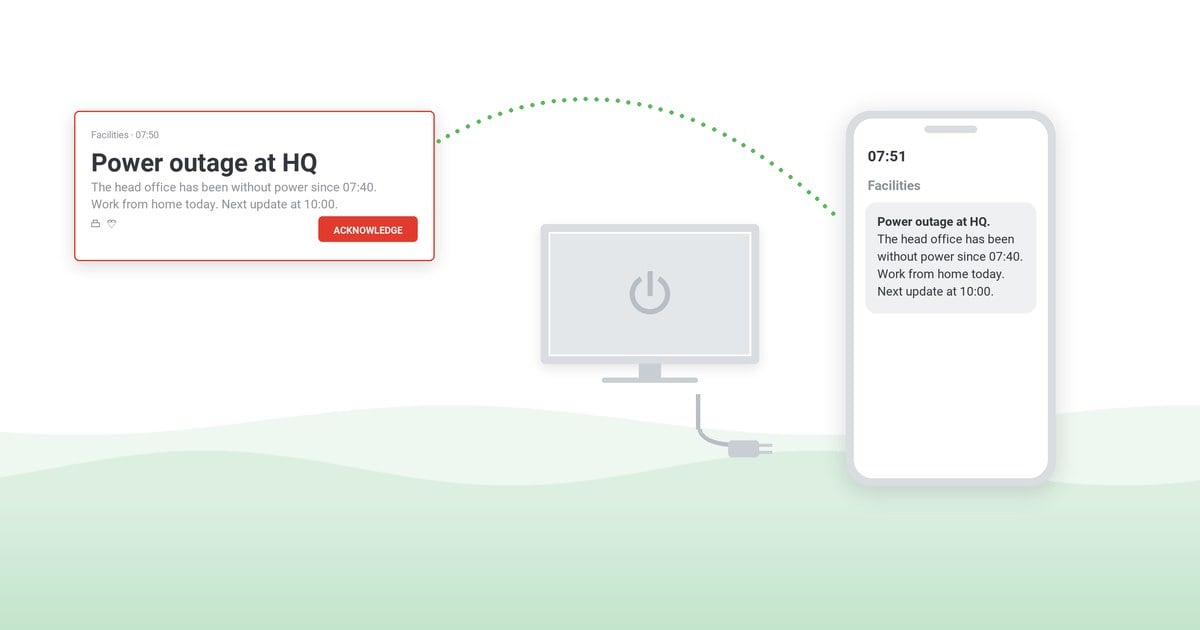
The process gives IT three messages to send: a first alert that says what is affected, what to do meanwhile and when the next update will come; updates at the promised times; and an all-clear. Because email is part of the failure, the plan names a channel that does not depend on it – a pop-up or ticker on employees' computers, or the mobile app – and the first alert asks employees not to open duplicate tickets.
The full outage sequence is covered in keeping everyone informed when systems fail; ready wording for common incidents is in these IT outage message templates.
Use case 3: Compliance updates that need acknowledgment
Policy changes, new regulations, safety protocols and mandatory training deadlines share one requirement: the organization must be able to show later that each affected employee received the message and confirmed it.
Example: new data-handling rules. A data-protection change requires every employee who handles customer records to complete updated training within two weeks.
The notice goes only to the affected groups, with a link to the training module and an acknowledgment request. Halfway to the deadline, the sender resends the notice to everyone who has not acknowledged it; at the deadline, the record of who received and who acknowledged the notice goes into the compliance file. The wording and timing of that request are discussed in asking employees to confirm a critical message.
Use case 4: Time-sensitive HR announcements to a distributed workforce
Leadership changes, mergers, office moves and benefits enrollment deadlines should reach every site and shift at the same time, before employees hear about them second-hand.
Example: a merger announcement. The company announces a merger with an international partner, with changes to the leadership structure and to some roles.
The announcement is written once and scheduled for a fixed time, so that employees receive the exact wording rather than a version relayed at handover. Audience groups by region or department let local managers send their own follow-up notices, and the alert is kept active so that delivery continues for employees who are offline at the scheduled time.
Use case 5: Engagement in training and awareness campaigns
Phishing awareness, workplace safety, wellbeing and policy reminders are campaigns rather than single messages. Sent as one long email, they compete with every other email and are easy to postpone.
Example: a phishing awareness week. After a rise in scam emails, the security team needs employees to recognize phishing attempts and complete a short e-learning module.
The team schedules a sequence over five working days: each morning a pop-up with one warning sign of phishing, a three-question quiz mid-week, and a final reminder with the link to the module. Before the final reminder goes out, the quiz results show who has taken part and who has not.
Free download
Use cases in healthcare. Hospitals and care providers can download eight further use cases written for their setting:

Desktop alerts and employee engagement
Getting an alert onto an employee's screen is only the first step. The employee also has to read it and, where needed, act on it.
Why employees ignore desktop notifications
The competition for attention is heavy. Microsoft's June 2025 Work Trend Index special report, Breaking down the infinite workday, finds that the most-contacted fifth of Microsoft 365 users are interrupted by a meeting, email or chat on average every two minutes during core work hours. With that many interruptions, employees quickly decide which alerts they can ignore. Five habits on the sender's side make them more likely to ignore alerts:
- Every message looks urgent. When the cafeteria menu arrives in the same pop-up as an evacuation order, the pop-up stops signaling urgency.
- The alert concerns someone else. Sending an alert about one site's problem to the whole company makes employees less likely to read the next one.
- No action is asked. A notice without a clear instruction or deadline gives the reader no reason to act now.
- The timing is wrong. A pop-up during a presentation or a customer call gets closed to clear the screen.
- Nobody follows up. If no one follows up on missing acknowledgments, employees stop treating them as required.
What raises engagement with desktop alerts
- Match the format to the urgency. Deliver routine news as a ticker or screensaver and reserve full-screen pop-ups for genuine emergencies.
- Send to the affected groups only. Employees pay more attention to alerts that are consistently relevant to them.
- Put the action in the title. "Save your files – network maintenance at 6 p.m." tells employees what to do before they open the alert.
- Ask for a response where it adds value. An acknowledgment button, a two-option reply or a one-question poll gives the sender a measure of participation instead of a guess.
- Review the numbers each month. Acknowledgment and participation rates by message type show which formats employees respond to and which they have learned to dismiss.
How alerts are composed, targeted and tracked on the desktop is described on the desktop alert software page; tactics for routine content are in getting employees to pay attention to announcements.
How to automate employee notifications
Automate the parts of the process that need no decision at the moment of sending. There are four: who receives, the standard wording, the timing of recurring notices and the events that start an alert. The decision to declare an emergency, and the wording for an event nobody planned for, stay with people.
- Keep audience groups in sync with the directory. Groups that come from Active Directory or Microsoft Entra ID follow joiners, movers and leavers without manual list maintenance; see Active Directory alert targeting.
- Prepare templates for recurring situations. Outage, severe weather, evacuation and security-incident messages are written and approved in calm conditions, so that during an incident the sender only fills in the details.
- Schedule recurring notices. Maintenance windows, enrollment deadlines and monthly reminders are set up once with a recurrence rule – daily, weekly, monthly or custom – instead of being re-sent by hand.
- Trigger alerts from other systems. Monitoring tools, building sensors and service desks can create an alert through an API when a defined condition occurs, such as a server going offline or a sensor reading crossing a threshold. Typical triggers are listed under automated incident notifications.
Rolling out the process in three stages
Launching everywhere at once leaves senders no time to practice and employees no time to learn what each format means. A staged rollout avoids both problems.
Stage 1 – Pilot with IT. Outage and maintenance notices are frequent, their success is easy to judge by the number of duplicate tickets during an incident, and IT already manages employees' computers. Test templates, audience groups and follow-up rules here.
Stage 2 – Add HR, compliance and safety. Each function brings its own message types; add them to the notification matrix with an owner, a format and an acknowledgment rule. Run one emergency drill with the safety team before the process goes company-wide.
Stage 3 – Go company-wide. Brief every sender on the policy – who sends what, through which approval – and tell employees what each format means: a ticker is information, a pop-up needs attention today, a full-screen alert needs action now.
A wider checklist for introducing new tools is in this software rollout plan.
Running the process in employee notification software
DeskAlerts is employee notification software for computers and mobile devices. What it gives each team:
- IT: a channel that does not depend on email, audience groups synchronized from Active Directory or Microsoft Entra ID, and a REST API so monitoring tools can create alerts.
- Safety and facilities: prepared emergency alerts that authorized senders send with one button to computers and the mobile app.
- HR and compliance: a record of who received and acknowledged each notice, and resending to those who have not.
- Internal communications: formats from tickers to full-screen pop-ups, so routine news does not compete with urgent alerts.
The full list of capabilities:
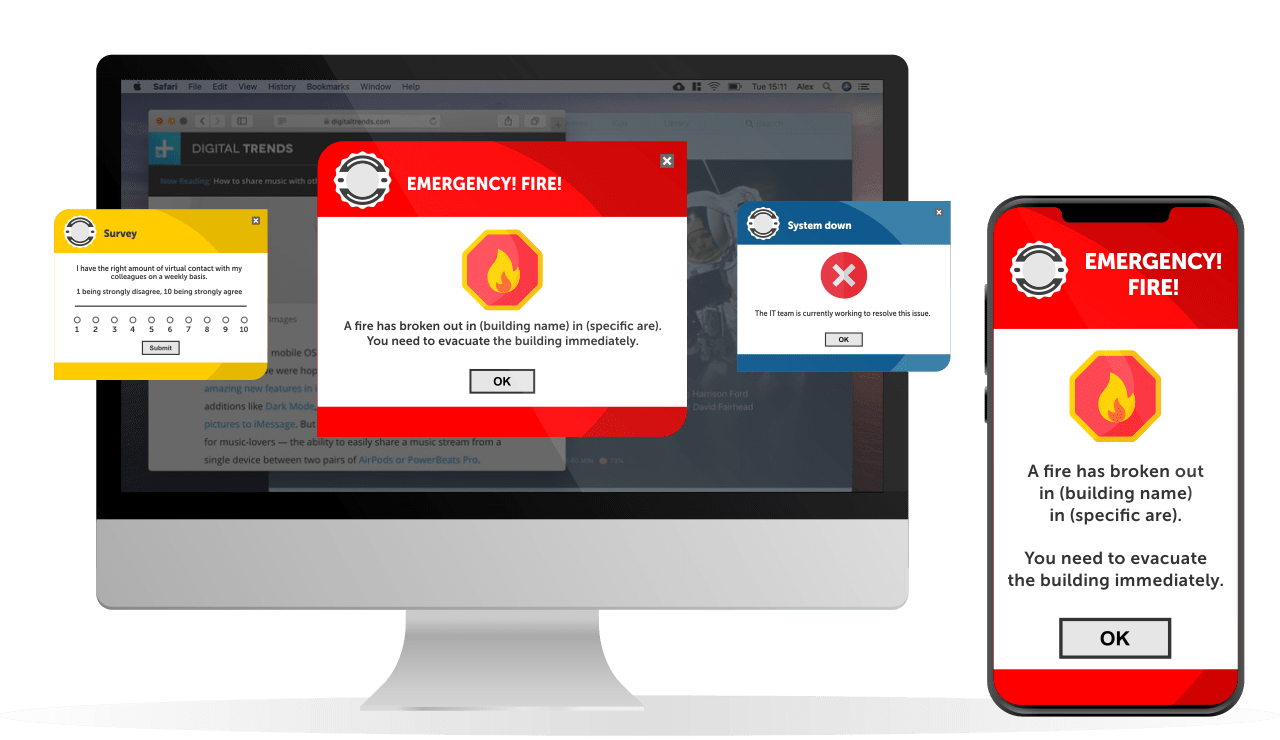
- Formats. Pop-up alerts (fixed-size, resizable or full-screen), scrolling tickers, wallpapers, lock screens, screensavers, video alerts, RSVP alerts with two reply options, and surveys, quizzes and polls. An emergency alert can also override the content on digital signage screens.
- Channels. Multi-channel delivery: send one alert simultaneously via your selected channels – desktop, mobile app, SMS and email – to reach desk-based and frontline employees. Microsoft Teams and text-to-call (a phone call that reads the alert aloud) are further options; SMS and text-to-call run through the organization's own account with Twilio, an SMS and voice provider.
- Audiences. Everyone, individual users, groups, organizational units, IP ranges or specific computers, with users and groups synchronized from Active Directory or Microsoft Entra ID.
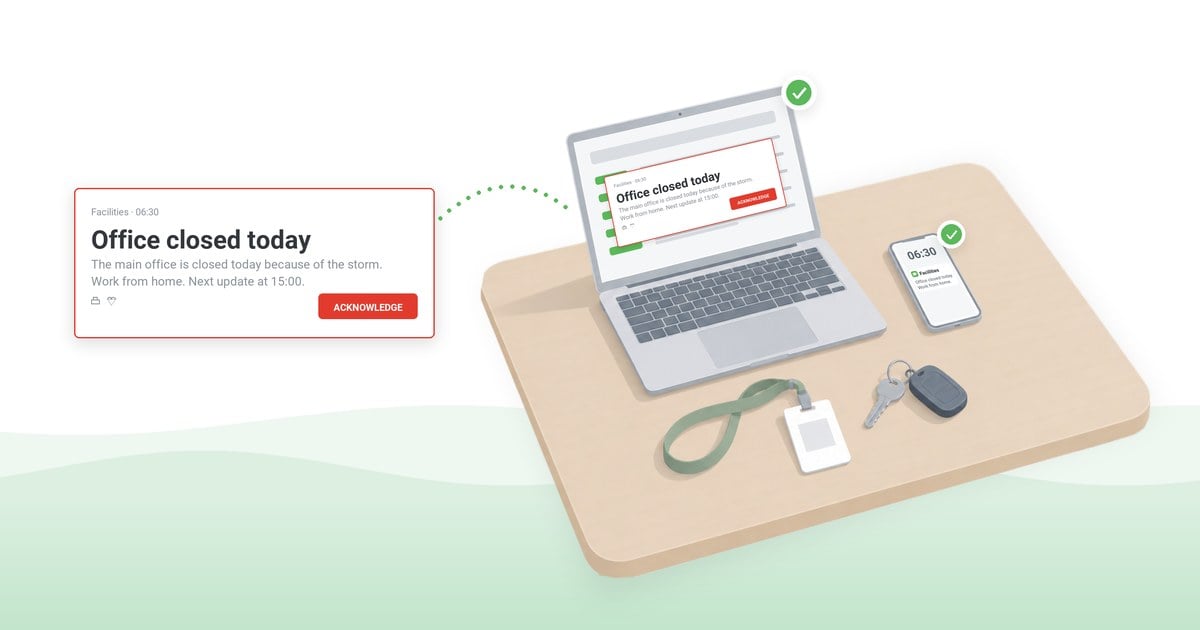
- Acknowledgment. With acknowledgment enabled, the close button is disabled and the alert stays on screen until the employee confirms they have read it.
- Records. Alert statistics show, for each alert, how many recipients received it, did not receive it and acknowledged it.
- Timing. On Windows, regular alerts can be suppressed while an employee shares their screen in Microsoft Teams or Zoom.
- Automation. Templates and drafts, scheduled and recurring delivery, pre-configured emergency buttons, an optional approval workflow, resending to recipients who have not acknowledged or received an alert, and a REST API for alerts created by other systems – see DeskAlerts API integration.
- Deployment. A cloud or on-premises server; the Windows agent deploys through Microsoft Intune, Configuration Manager (SCCM) or Group Policy, and the mobile app runs on iOS and Android.

Four organizations show parts of this process in practice:
Case study
University of Southampton
The university reserves desktop alerts for short-notice infrastructure failures, issues that affect specific groups of users or rooms, and fast-spreading malware attacks. Nick Williams, Senior Computing Officer: "We tend not to use it for 'informational' messages simply so that users get used to the fact that if a DeskAlert appears, they know it's something important and directly relevant to them, and they should read it."
Read the University of Southampton case study ›
Case study
Catalyst Paper
The paper manufacturer used the API to send safety messages from its Data Historian systems, which record readings from plant sensors. In the words of Jon Claude, Manager, Manufacturing Systems: "By monitoring sensors in various areas of our production environment, we are able to trigger plant-wide messages in the event that hazardous conditions arise, such as dangerous levels of sulphur dioxide (SO2) and hydrogen sulphide (H2S)."
Read the Catalyst Paper case study ›
Case study
CHU Saint-Pierre, Brussels
On the day of a terrorist attack the university hospital's internal phone network became overloaded. Staff were asked by desktop alert to reduce internal calls and, when the external phone network failed, to switch to SMS.
Read the CHU Saint-Pierre case study ›
Case study
Healthcare Australia
The Australian healthcare organization combines alerts with built-in surveys to inform staff and collect feedback. Shaune Houssenloge, IT Services Manager, describes the gain as the ability "to inform staff or get feedback immediately without the user being required to read an email or go to an application".
Read the Healthcare Australia case study ›
Where to start
Three steps turn this guide into a working process:
- List the message types your organization sends and give each one an owner.
- Fill in the notification matrix for those types.
- Pick the first team and set the date of its first live alert.
Teams that are still choosing a tool can compare candidates against the criteria on the employee notification software page.
See the notification process on your own screens
In a demo, we send an alert with acknowledgment required to computers and the mobile app and show the record of who received and who acknowledged it.
Frequently asked questions
Who should own the employee notification process in a company?
The employee notification process needs one overall owner – often internal communications or IT – and a named owner for each message type: IT for outages, safety or facilities for emergencies, HR for people announcements, and compliance for policy notices. The overall owner keeps the notification matrix, the sender list and the approval rules current, and revises the matrix each quarter against the acknowledgment figures.
Which messages should require acknowledgment from employees?
Acknowledgment belongs on messages the organization may later need to account for: safety instructions, policy and compliance changes, mandatory training deadlines and security notices. Routine news, event invitations and general updates should not require it, because a button that appears on every message becomes a reflex rather than a confirmation.
Does DeskAlerts offer read receipts and analytics?
DeskAlerts reports receipt and acknowledgment rather than reading. For each alert, the statistics count the recipients who received it, did not receive it and acknowledged it, with export to CSV or XLSX, and the users report shows the same status for each employee. An acknowledgment is the employee's own confirmation: when it is required, the alert can be closed only through the Acknowledge button.
How often should emergency notifications be tested?
Emergency notifications should be tested on the same schedule as the organization's evacuation or business-continuity drills, and again after any change to the sender list, the audience groups or the prepared emergency messages. Each test checks three things: that the authorized senders can send the prepared alert, that it is delivered to every audience group on each channel in the plan, and that the follow-up rule is applied to the employees who have not acknowledged it.


 Steve Wilson: Nov 3, 2026, 8:00:00 AM